Adding a New User/Partner

If you would like to add a new user please navigate to the users page, click “+ Add user”
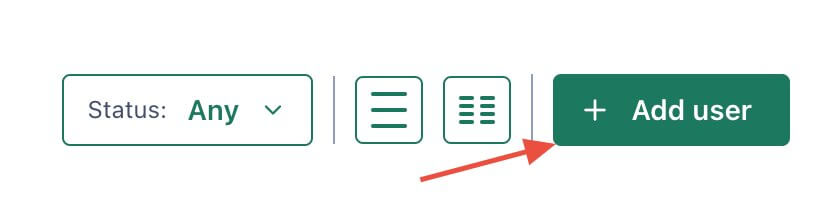
Add New User Button

Specify the user's information, fields with a * are mandatory:

  • Name* - Users name
  • Email* - Users email, this is used for platform login
  • Company - Users company name
  • Phone number - Users Phone Number
  • Currency - This specifies the users default currency
  • User Role* - See below

Click "Create"

You can sort the Users page by Name, Email, and Signed Up columns, click on the arrows to the right of each column in order to sort

User Roles

There are various types of user roles in the platform, each having variations of access and reporting views.

  • Admin - These are for platform administrators. Internal users who are able create, and modify all fields in the platform

  • Partner - These users can only see their information and offers/deals assigned to them by an admin.
Configure Postbacks

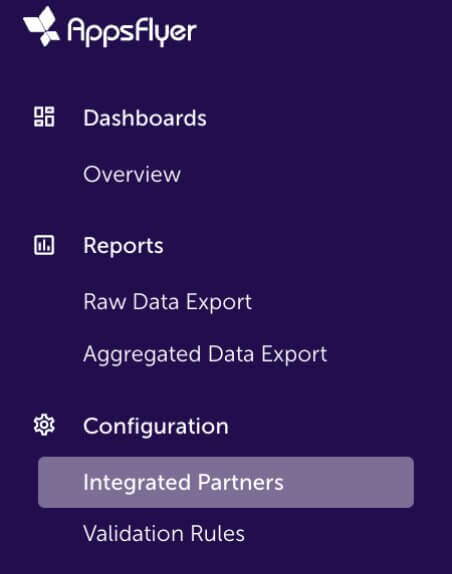
  • Open up the App, and navigate to "integrated partners"
Appsflyer Integrated Partner
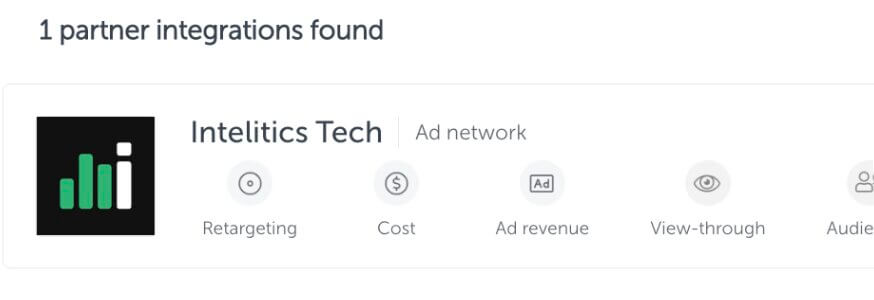
  • Select "Intelitics Tech"
Appsflyer Intelitics Tech
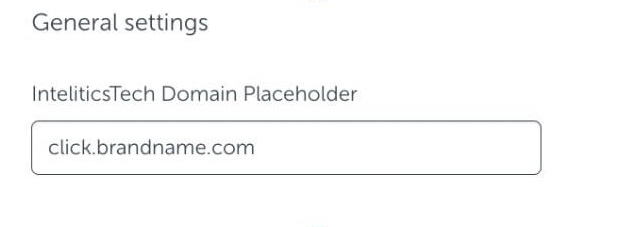
  • On the "Integration" tab, set the "InteliticsTech Domain Placeholder" for both "General Settings and "In-app Event Settings"
    • This is the domain set up for tracking links in Intelitics Instance, containing Second-Level Domain, Top-Level Domain, and Subdomain

      Eg: https://click.brandname.com/track/9bdadbfe-715f-4040-905d-364928eb6548?type=display
Appsflyer Domain Placeholder
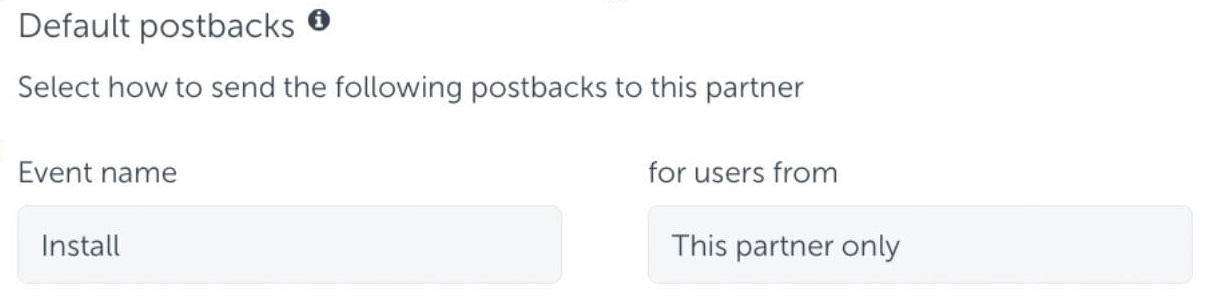
  • Set the name for Default Postbacks Event name to "Install"
Appsflyer Default Postback
  • Turn on "In-App events postback"
  • Add events for both registration and deposit
    • The name of "Appsflyer event" for registration and deposit could be different depending on your integration with appsflyer, these are the names of the events you are passing into Appsflyer
    • Names of "Mapped to partner event" must configured as "registration" and "deposit"
    • Deposit event should include "Values and Revenue" whenever possible

      Eg.
Appsflyer Inapp Events

Grant Intelitics Permissions

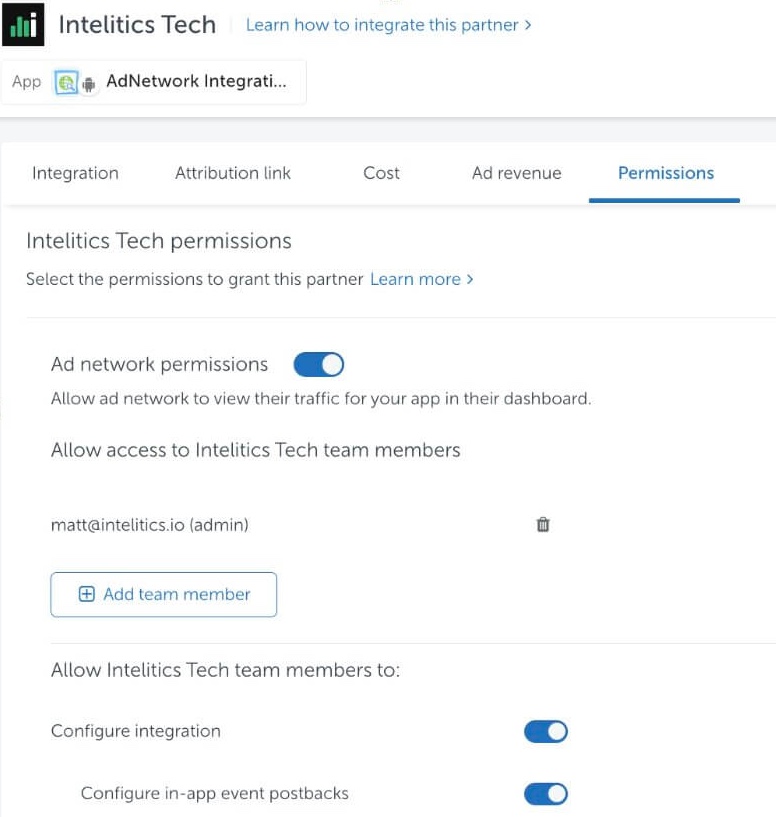
  • Navigate to "Permissions" tab
Appsflyer Grant Permissions
  • Set "Ad network permissions" to "On"
    • Must allow "configure integration" and "configure in-app event postbacks" as well.
  • Once complete, contact your support at Intelitics to verify the setup.