Agreement Qualifications

If your offer payout is dependent on further qualifications, you may enable these by clicking the slider in agreement creation or editing.

  • Qualification Action - Select the type of qualification you wish to add. (i.e. Minimum Deposit Count, Minimum Deposit Amount, Minimum Wager Amount, etc.)
  • Max Deposit Window - Will set a time period a deposit event must happen within to be considered qualified. Can set time period to activate on a specific event type.
    • Window Event Type - Specified event type that will begin the deposit window (Click, Install, Registration)
    • Amount - Number of days the deposit event must be fired within to trigger qualification. (Ie: Window event type is registration, amount is 30. A deposit must happen within 30 days of registration in order to become qualified.)
  • Amount - the amount that needs to be hit to trigger an action as qualified. The currency defaults to the conversion data’s currency.
  • Count - the number that needs to be hit to trigger the action as qualified.
  • Add Qualification - you may add multiple qualifications
    - I.e. A minimum deposit of $20 and a wager of $10.
Configure Postbacks

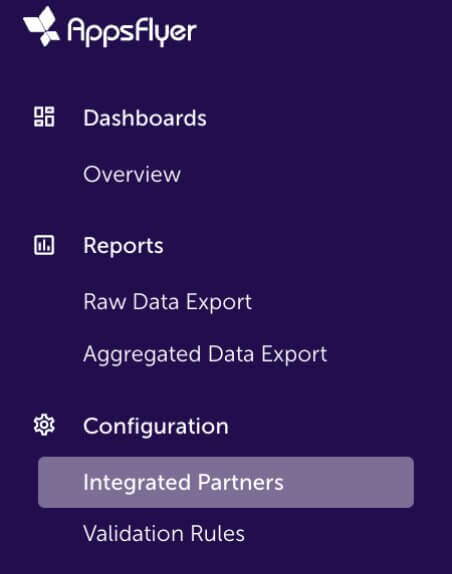
  • Open up the App, and navigate to "integrated partners"
Appsflyer Integrated Partner
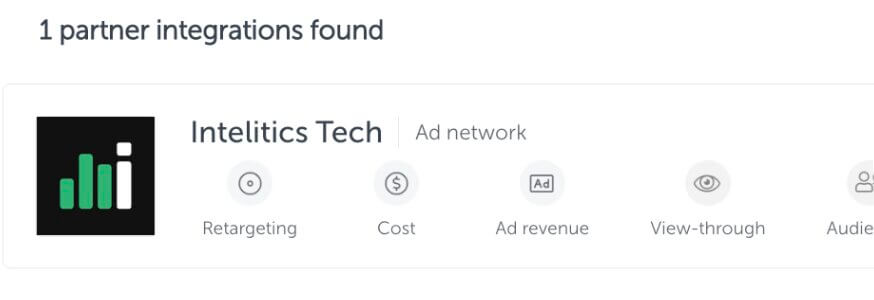
  • Select "Intelitics Tech"
Appsflyer Intelitics Tech
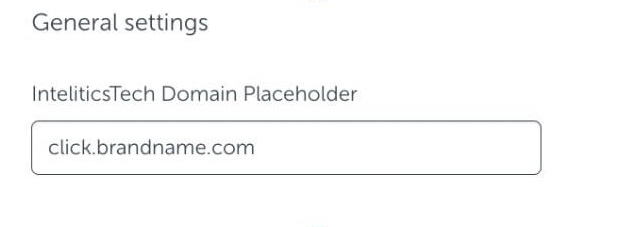
  • On the "Integration" tab, set the "InteliticsTech Domain Placeholder" for both "General Settings and "In-app Event Settings"
    • This is the domain set up for tracking links in Intelitics Instance, containing Second-Level Domain, Top-Level Domain, and Subdomain

      Eg: https://click.brandname.com/track/9bdadbfe-715f-4040-905d-364928eb6548?type=display
Appsflyer Domain Placeholder
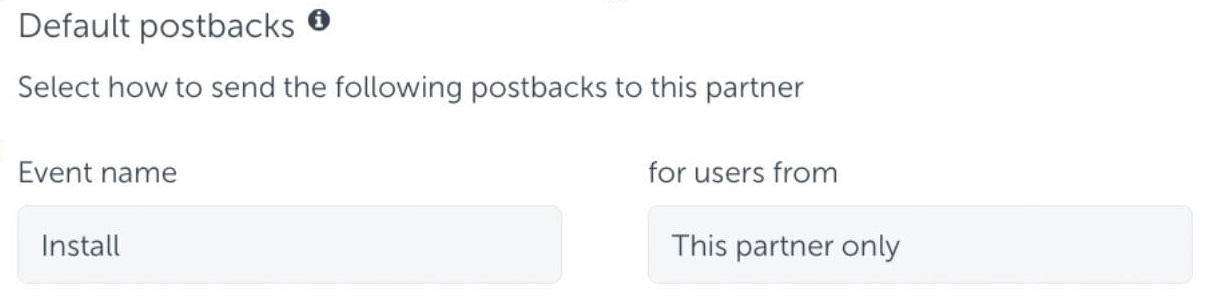
  • Set the name for Default Postbacks Event name to "Install"
Appsflyer Default Postback
  • Turn on "In-App events postback"
  • Add events for both registration and deposit
    • The name of "Appsflyer event" for registration and deposit could be different depending on your integration with appsflyer, these are the names of the events you are passing into Appsflyer
    • Names of "Mapped to partner event" must configured as "registration" and "deposit"
    • Deposit event should include "Values and Revenue" whenever possible

      Eg.
Appsflyer Inapp Events

Grant Intelitics Permissions

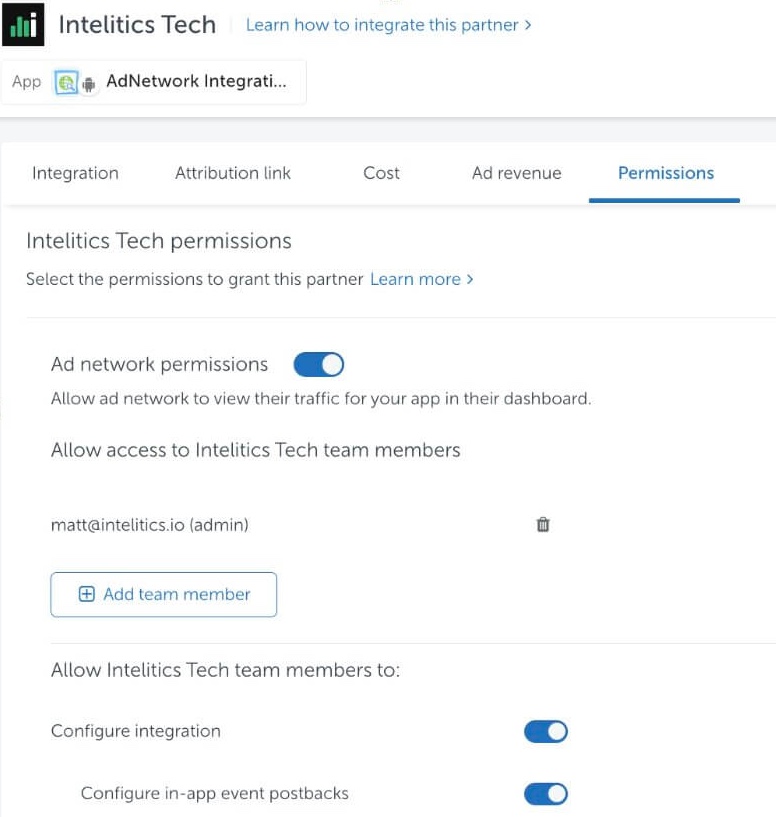
  • Navigate to "Permissions" tab
Appsflyer Grant Permissions
  • Set "Ad network permissions" to "On"
    • Must allow "configure integration" and "configure in-app event postbacks" as well.
  • Once complete, contact your support at Intelitics to verify the setup.