
This article will go over how to set up your data source for Google. Please note for this article you will be required to set up conversion events (actions) within your Google account.
Overview
In order to set up a new channel ingestion you will need to navigate to:
Settings > Data Sources
Once you are on the Data Source page please click on "+Data Source" and select Google:
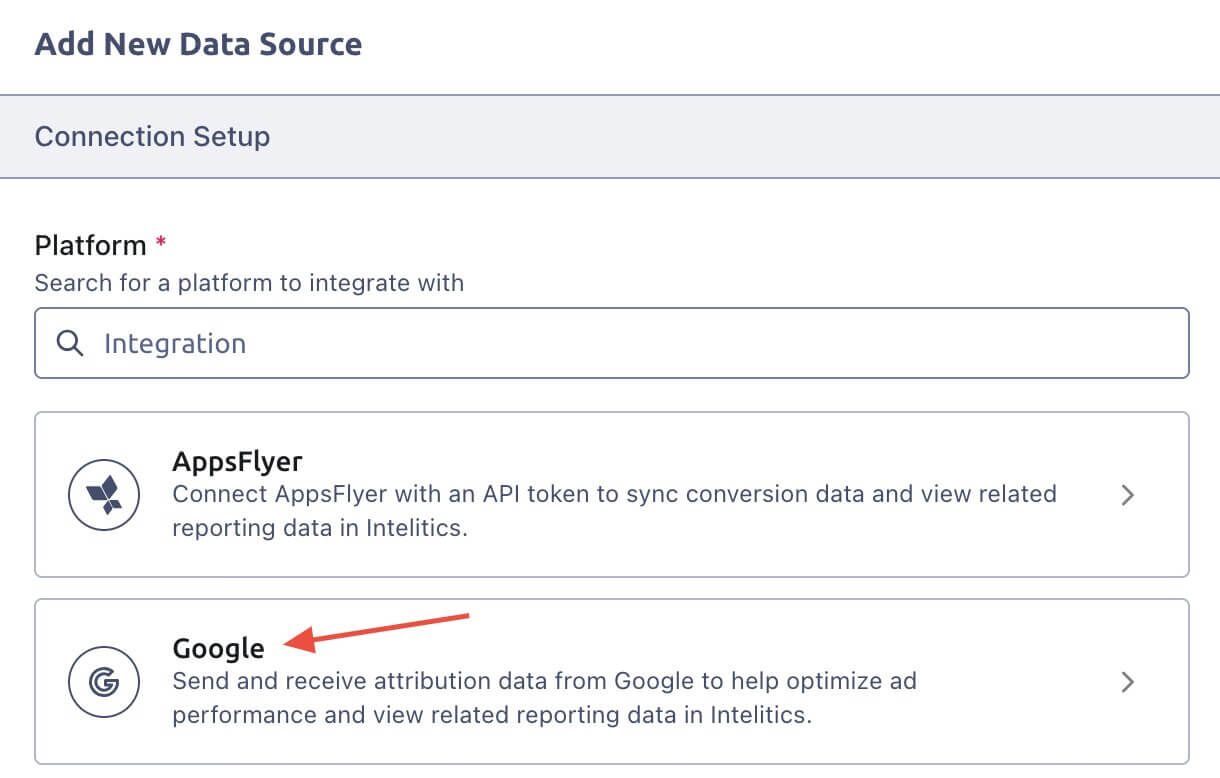
Once in the Google data source please input your select your Account ID from the pop out list. After you have selected your account ID you should log into your Google Ads account in order to set up your desired events.
How to Set Events in Google Ads
Once logged into your Google Ads account please navigate to:
Goals > Conversions > Summary
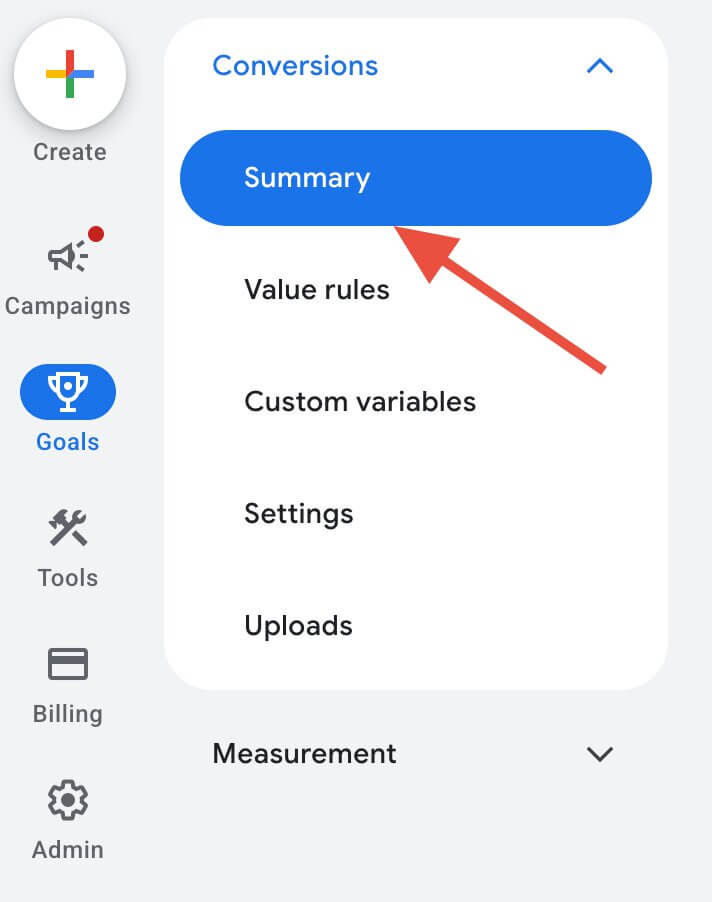
Once you are on this page navigate to the "All your goals" section to set up your conversion events by clicking on "+ create conversion action".

Getting Started with your Conversion Action
Under "Choose data sources to measure conversions" only leave "Offline Conversions" checked and hit "Save and Continue". Marking the data source as Offline conversions allows the data to be sent via API.
Should you need to connect a data source for Offline Conversions hit "edit data source" and under "Choose a data source" select "Skip this step and set up a data source later"
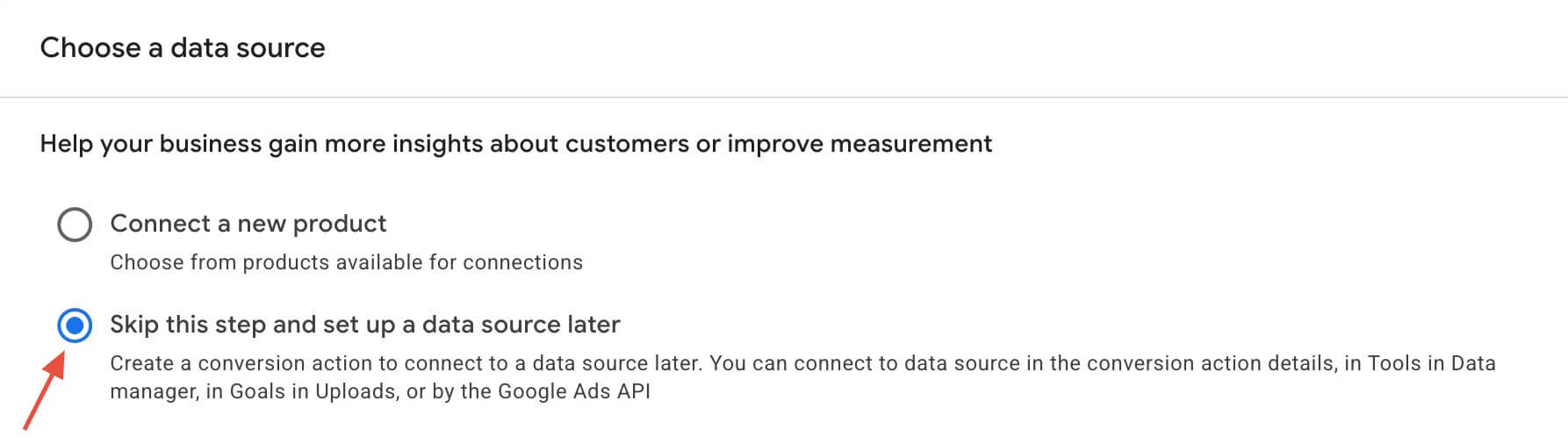
After choosing the data source check the Customer data checkbox and hit "Done"
Create Conversion Actions
When you are on the "Group your conversions" page please select your desired conversion event to set up. For Intelitics it is recommended you set up events for both registration (Sign-up) and deposit (Purchase). The example below will take you through the steps for creating a Sign-up conversion action.
When setting up a Sign-up conversion action hit "edit settings" to appropriately manage and label the event.</p
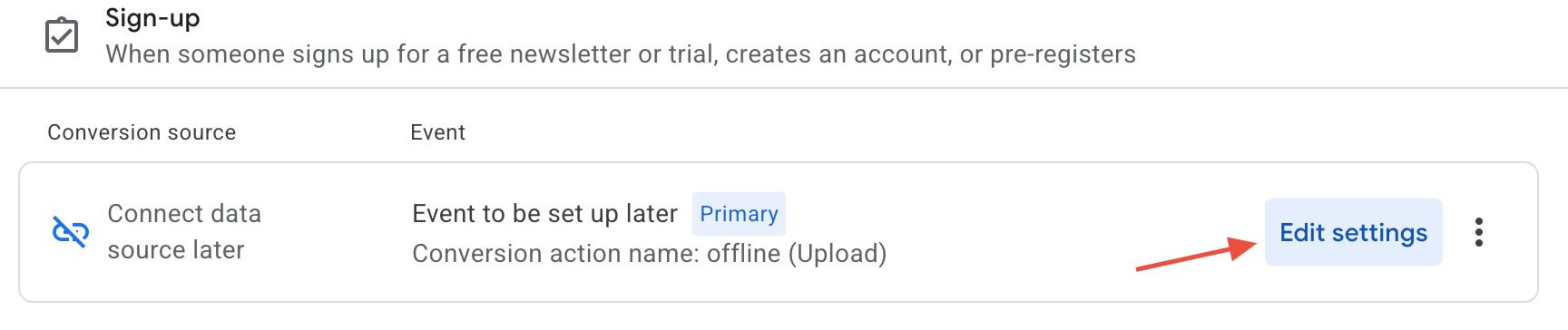
Under the Conversion settings please select the below for each section:
Action Optimization
Primary action used for bidding optimization
Conversion name
It is recommended you include "Intelitics" in the name for labeling purposes. A recommended name to use is "Intelitics Registration".
Value
Use different values for each conversion
If you need to "Enter a different value" you can use "US Dollar (USD $)" and "1".
Count
Every
Click-through conversion window
90 days
Engaged-view conversion window
3 days
Attribution
Use attribution in Google Ads
Once all the settings are complete hit "done" to go back to the conversion action. You should find yourself back on "Create and measure conversions", to complete the conversion action click on "Save and Continue" and your conversion action should be complete! Please note you will need to repeat this process for every desired event type you would like sent back to your Google Ads account.
With the conversion events created you can now set up the events in the Intelitics platform.
How to Set Events in Intelitics
Navigate back to your Google integration page in Intelitics and under "Events and Triggers" please click on "+ Event"
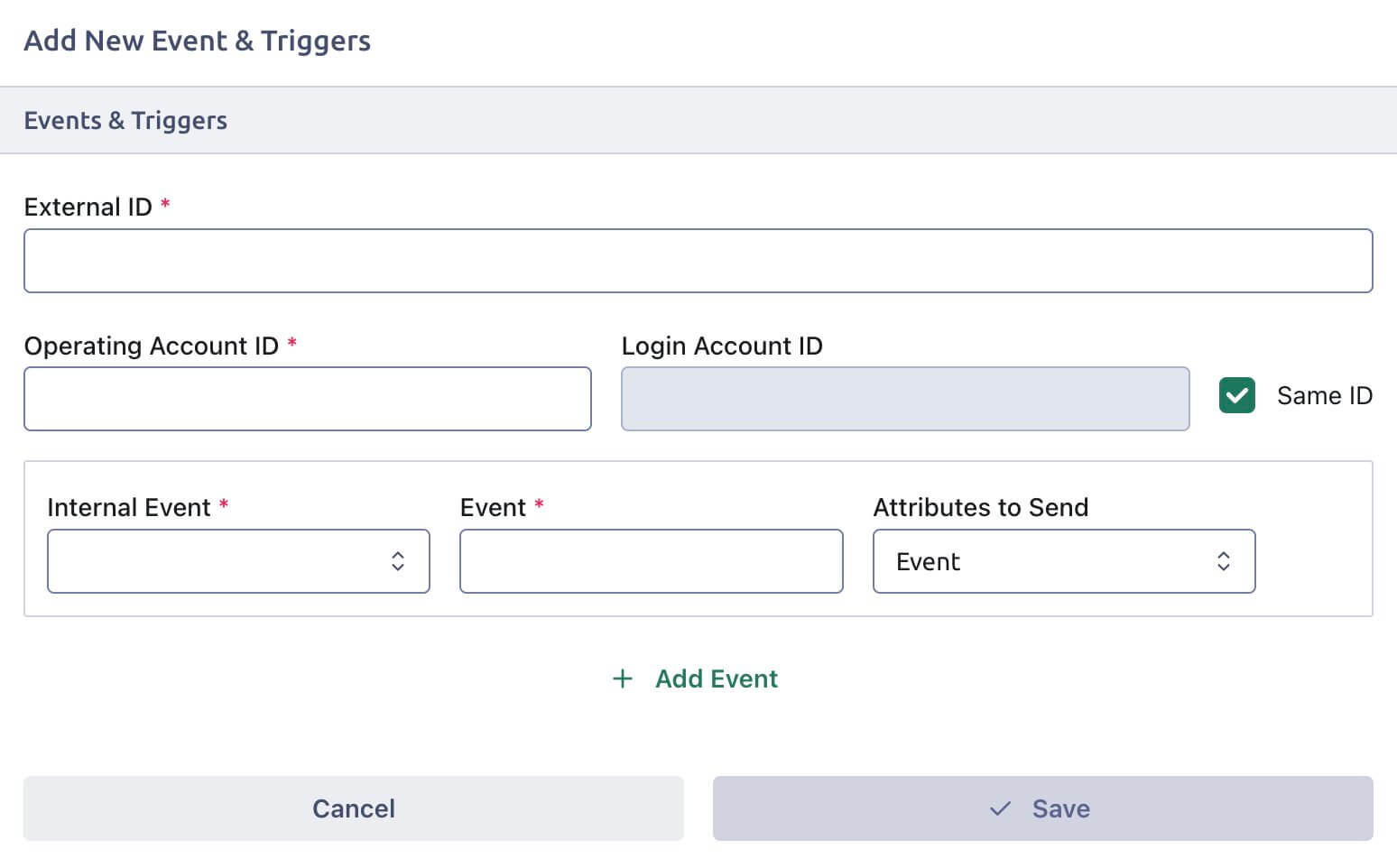
Place your External ID for the conversion action you are looking to create. If you do not have your external ID you can locate it by accessing your Google Ads account, viewing the details of your conversion event and in the URL the ID will be listed under parameter name "ctid".
ex:
https://ads.google.com/aw/conversions/detail?ocid=1234567890&ctId=0987654321Your Operating Account ID and Login Account ID should be automatically added, if these fields are blank please contact a member of the Intelitics team.
Internal Event
Select your desired Intelitics event to connect to your Google conversion Action.
ex: Sign-up (Google) would be registration under Intelitics. Purchase (Google) under Intelitics would be deposit.
Event
It is highly recommended to keep the naming convention the same across both platforms to prevent any confusion on the associated event types. Because of this we suggest using the same naming convention as listed under "Conversion Name" in this same article.
Attributes to Send
If setting up a registration event please use "Event" otherwise you can use "Event & Value"
After the fields are complete hit "Save" and repeat this process for each event type you would like included in the integration. Once complete your Google Ads account will now receive data from the Intelitics platform!