This article will go over how to set up your data source for Meta. Please note for this article you will be required to access your Meta account.
Overview
In order to set up a new channel ingestion you will need to navigate to:
Settings > Data Sources
Once you are on the Data Source page please click on "+Data Source" and select Meta:
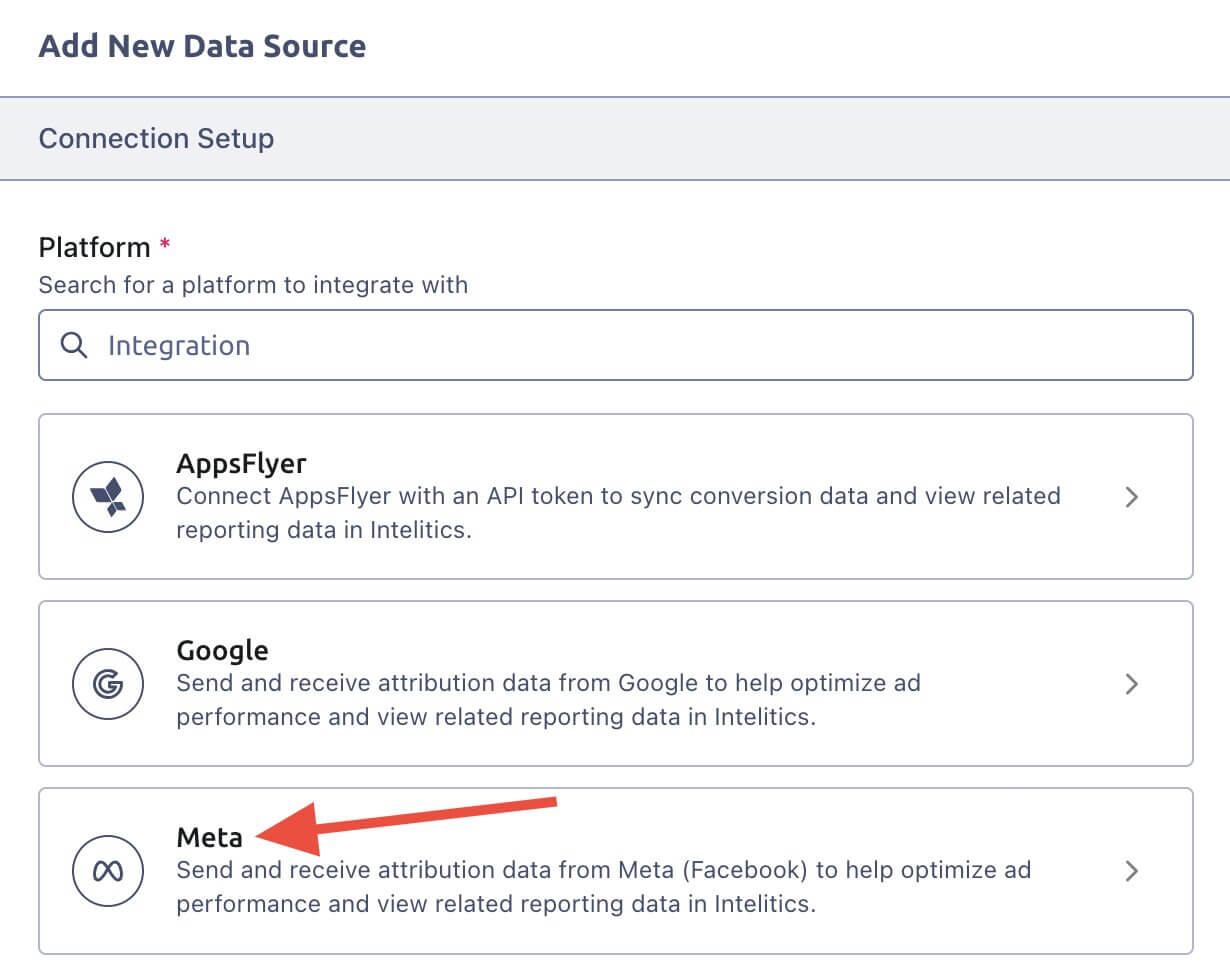
How to Connect Meta Account to Intelitics
Once in the Meta data source you will be redirected to the Meta business portfolio. If needed please sign into your account and under "Business Porfolio please select your desired business so set up the integration with.
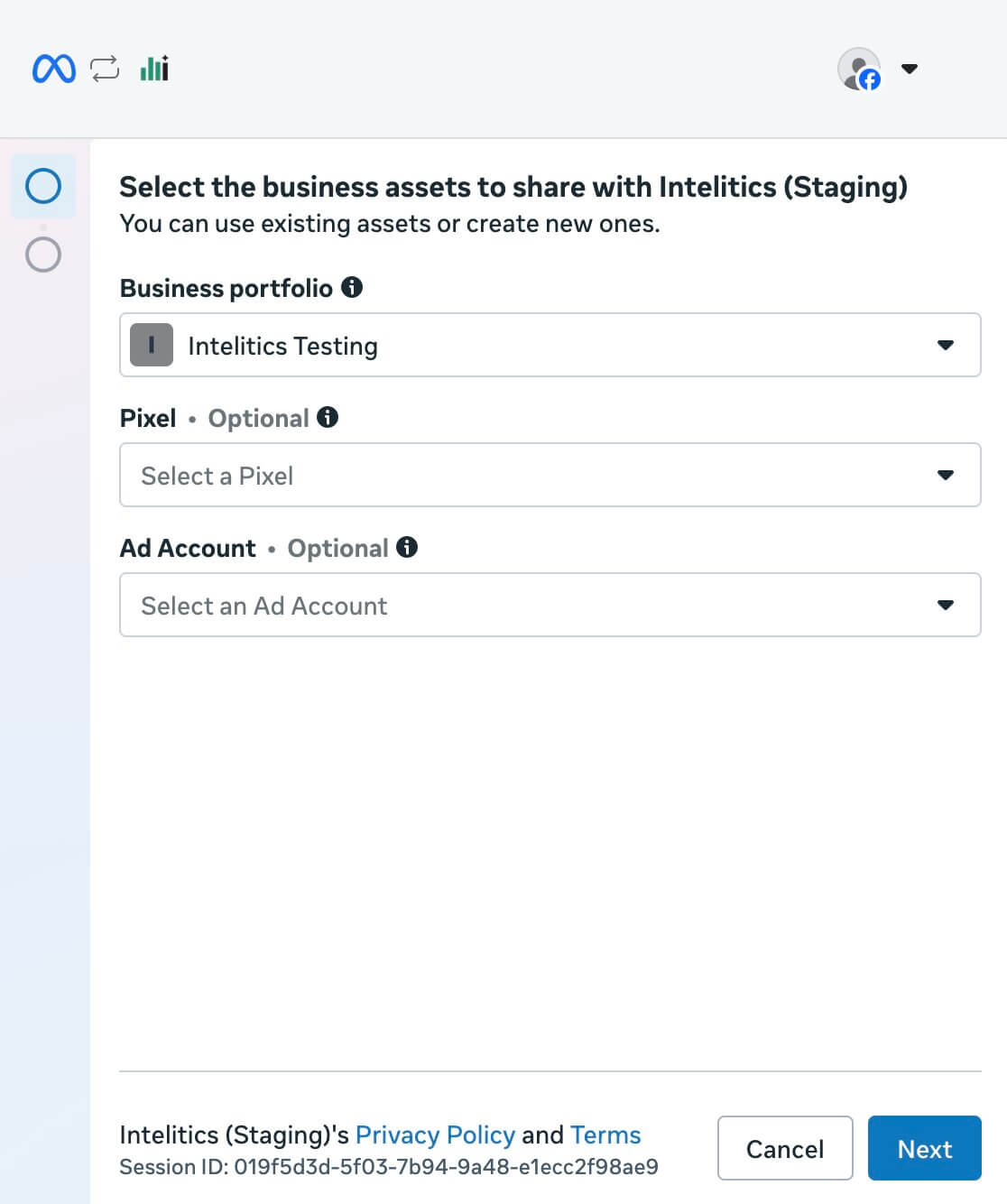
You can skip the Pixel and Ad Account fields and hit "Next", Meta will then ask to confirm the access you are granting, hit "Confirm". After, on the next pop up you can hit "Finish" and you will be redirected back to the Intelitics data source page where you will see a successful connection pop up. Here, click "Go to Data Source" to complete the set up.
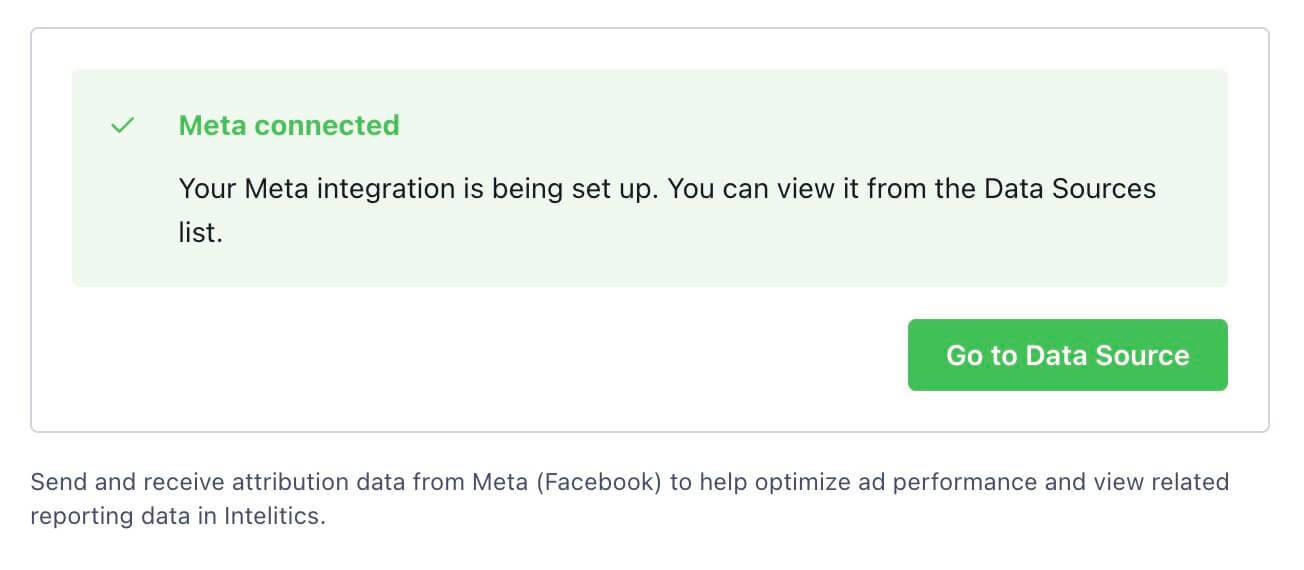
Once you receive the successful connection page you will no longer need to configure any additional set up in Meta, the remaining set up will occur within the Intelitics platform.When you are back on the data source page for Meta you should now see your account ID in the selection. Click it and hit "Next".

On the next page you will be asked to Name the Account Name, we recommend using the same name as shown in your Meta Business Portfolio (ex: Intelitics Testing). After the name is added hit "Save" and you will be prompted to set up your events to send to Meta.

How to Set Events in Intelitics
Once the Account is connected you can set up which events you would like to send to Meta. Our article will go over our reccommendation on how you can send Registration and Deposit events for Meta. With Meta you can send over custom events or follow the list of standard events they have listed, the decision is up to your business. If you would like to see all standard events available in Meta please view the article here.
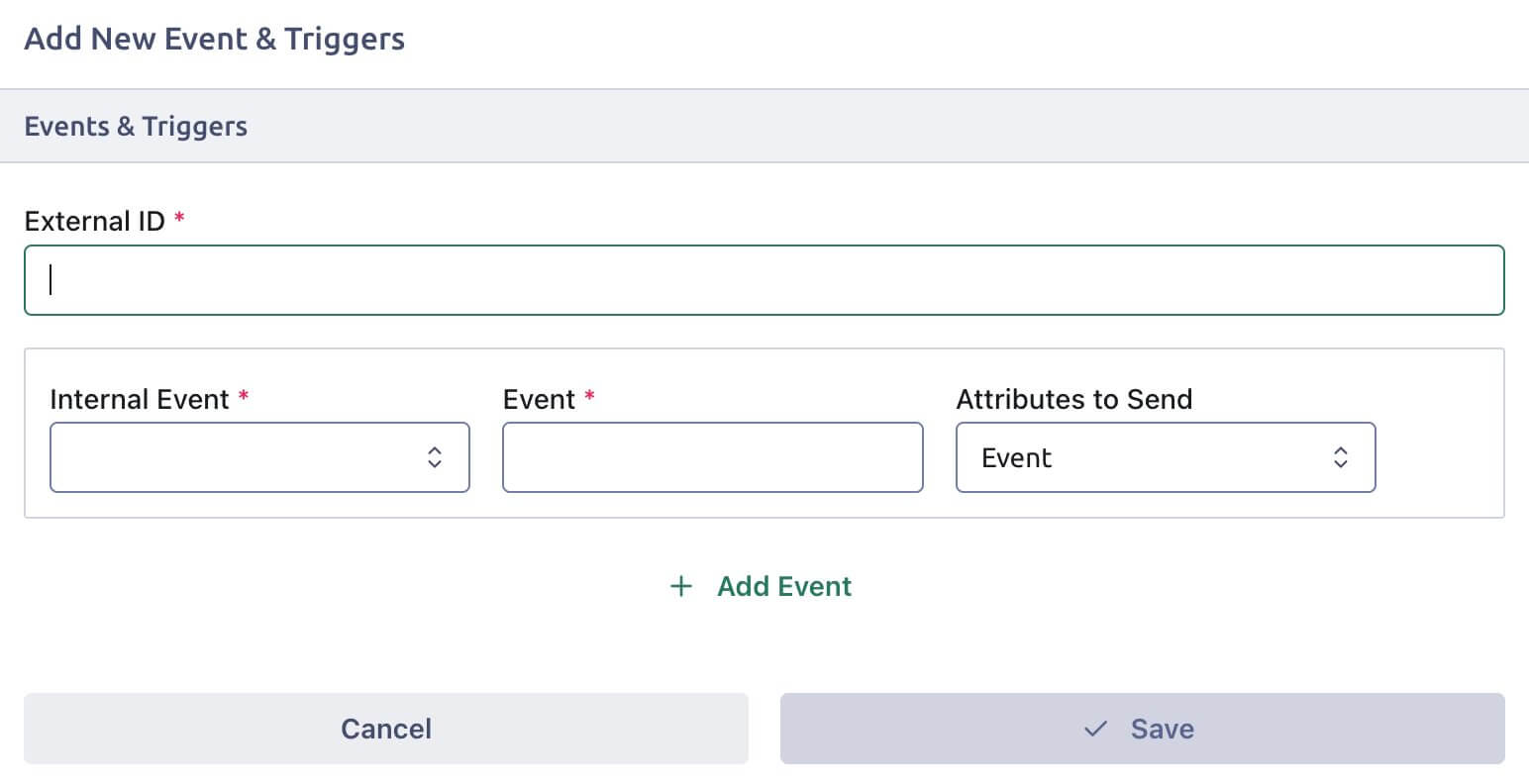
To locate your External ID head to the settings page of your Meta Business account and under "Data Sources" click on "Datasets and Pixels". Here you should see your integration, click on the integration and the External ID will be under the name.

Add the ID to the External ID field in Intelitics.
Internal Event
Select your desired Intelitics event to connect to Meta.
ex: Registration (Meta) would also be registration under Intelitics. Purchase (Meta) under Intelitics would be deposit.
Event
It is highly recommended to keep the naming convention the same across both platforms to prevent any confusion on the associated event types. Because of this we suggest using the same naming convention as listed under "Conversion Name" in this same article.
Attributes to Send
If setting up a registration event please use "Event" otherwise you can use "Event & Value"
After the fields are complete you can hit "Save" or if you would like to add an additional event you can click on "+ Add Event" and repeat this process for each event type you would like included in the integration. Once complete your Meta account will now receive data from the Intelitics platform!