
This article will go over how to set up your data source for TikTok. Please note for this article you will be required to access your TikTok account.
Overview
In order to set up a new channel ingestion you will need to navigate to:
Settings > Data Sources
Once you are on the Data Source page please click on "+Data Source" and select TikTok:

How to Connect TikTok Account to Intelitics
Once you click the TikTok data source you will be redirected to the TikTok business. If needed please sign into your account. You will be asked to confirm the connection, please hit "Confirm".
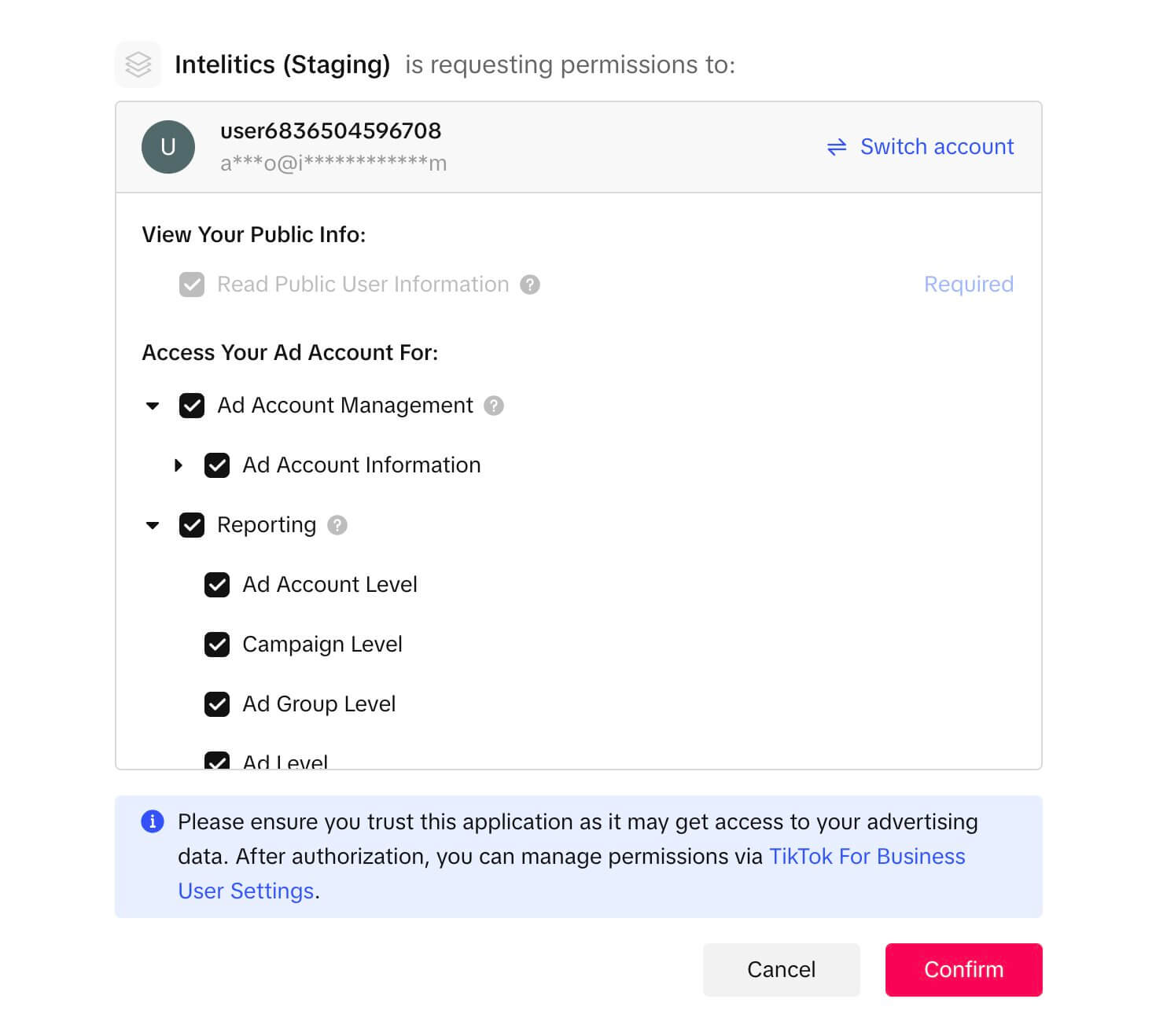
TikTok may also ask to verify your account before authorizing the connection. Once connected you will be redirected back to the Intelitics data source page where you will see a successful connection pop up. Here, click "Go to Data Source" to complete the set up.

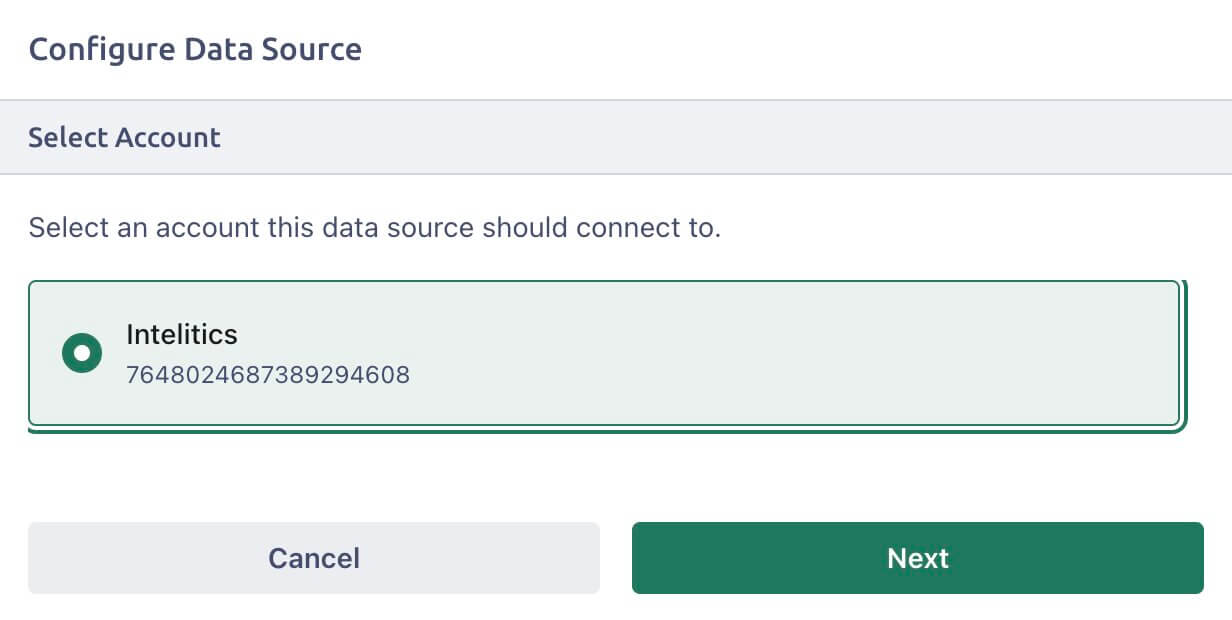
When you are back on the data source page for TikTok you should now see your account ID in the selection. Click it and hit "Next".
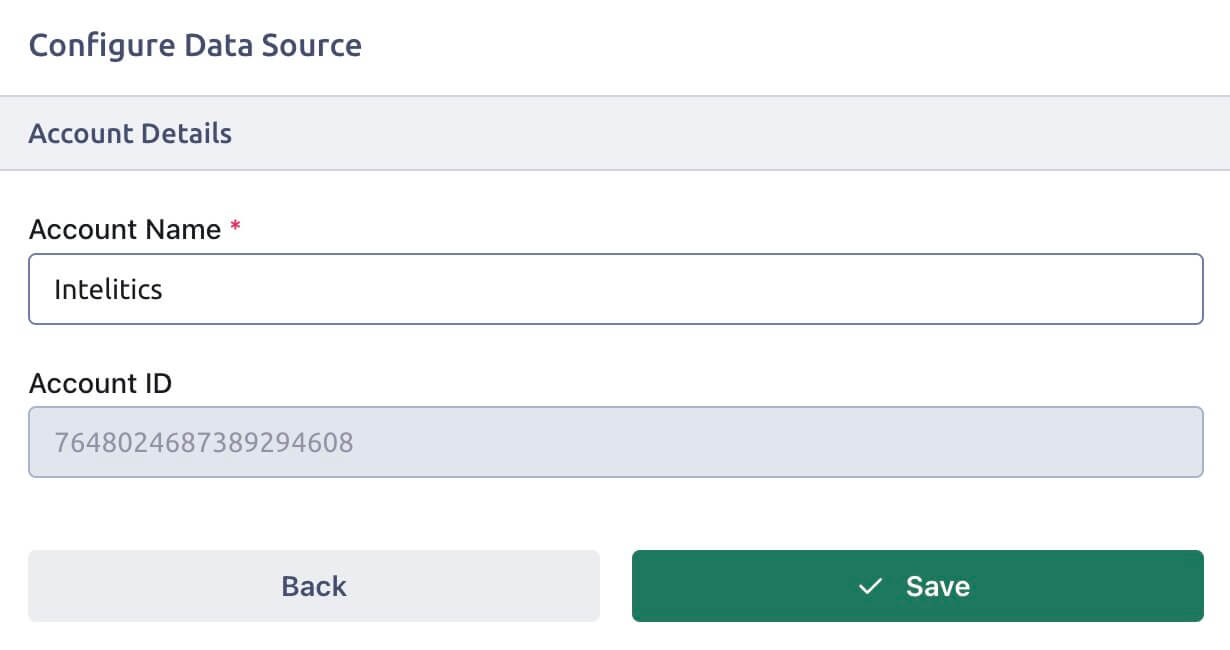
On the next page you will be asked to Name the Account Name, we recommend using the same name as shown in your TikTok Business page (ex: Intelitics). After the name is added hit "Save" and you will be prompted to set up your events to send to TikTok. If you do not yet have a pixel (known as data source in TikTok) within your TikTok Account please create one in order to generate an External ID. Our section below will go over how to create a data source within TikTok. If you already have a data source created please use the ID generated as your External ID and see our section below on how to set up the events.
How to Generate your External ID
Please login into your TikTok business account. Once in your account navigate to Business Settings in the top left corner of the screen and go to "Events Manager".

After, you are in the events manager go to "Data Sources" and in the top right corner of your screen hit "Connect Data Source"

When connect the data source please select "Offline" as the option. Hit "Next" and you will be asked your data source.

When naming the data source while we recommend keeping the naming convention the same between your Intelitics and TikTok account, ultimately this decision lays within your business on what to name the data source. It is optional to add a description to the data source. Hit "create" and you will now have your data source.
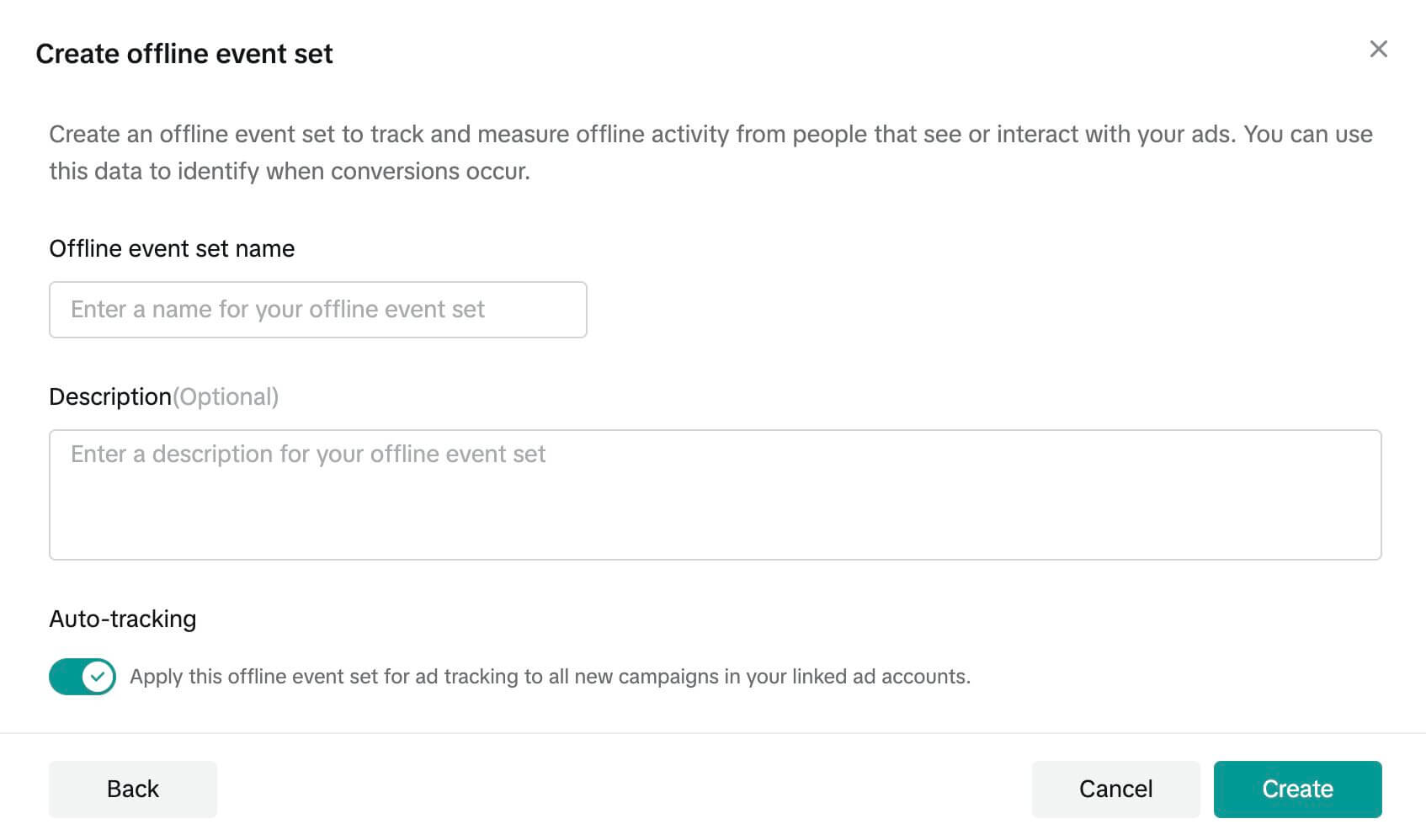
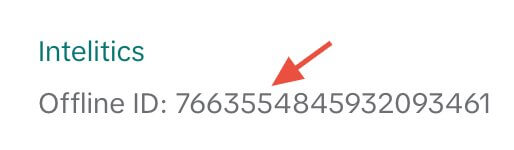
The ID that is generated will be the External ID that is used when creating events to send to TikTok.
How to Set Events in Intelitics
With the account connected you can set up the events to send to Tiktok. Please note our examples will go over our recommendation on how to send Registration and Deposit Events. With TikTok you can create custom events or follow the list of Standard Events they have listed, the decision is up to your business. If you would like to see all Standard Events available in TikTok please view the Offline Standard Events section of the article here.
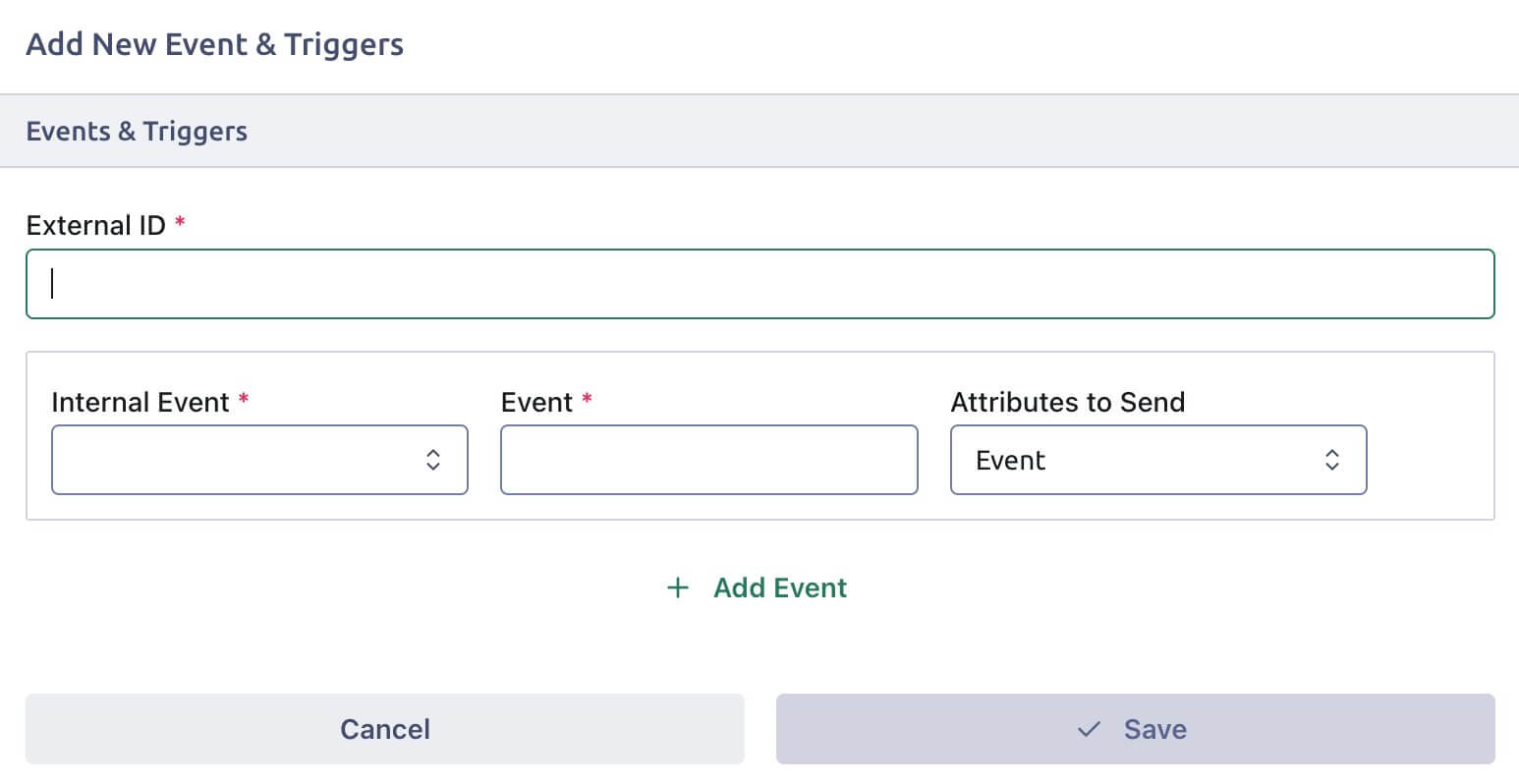
If you are not currently on the "Add New Event & Triggers" pop up inside your TikTok Data Source please click on "+Event".
Internal Event
Select your desired Intelitics event to connect to TikTok.
ex: CompleteRegistration (TikTok) would also be registration under Intelitics. Purchase (TikTok) under Intelitics would be deposit. Please be aware these event names are case sensitive.
Event
If selecting from the list of Offline Standard Events provided by TikTok you will need to need to ensure the name is written with the same casing as shown in the TikTok article. For instance, if you are setting up a registration event please use CompleteRegistration as the Event name and if using deposit please use Purchase as the event name.
Attributes to Send
If setting up a registration event please use "Event" otherwise you can use "Event & Value"
After the fields are complete you can hit "Save" or if you would like to add an additional event you can click on "+ Add Event" and repeat this process for each event type you would like included in the integration. Once complete your TikTok account will now receive data from the Intelitics platform!