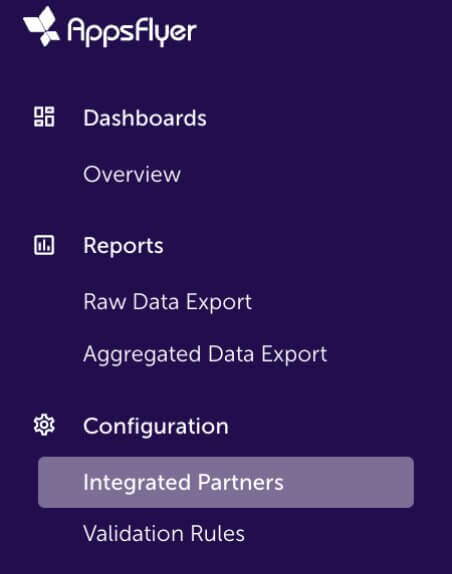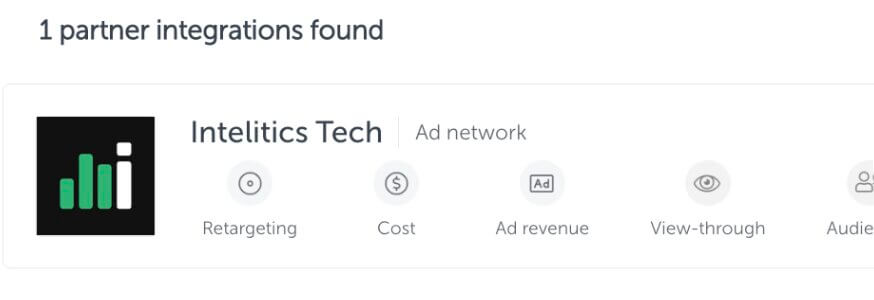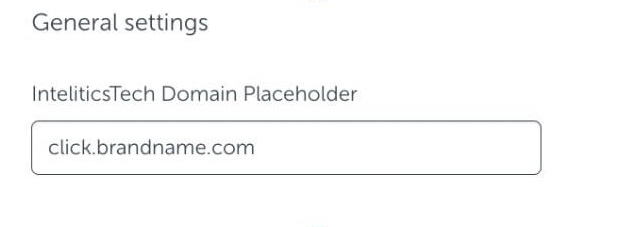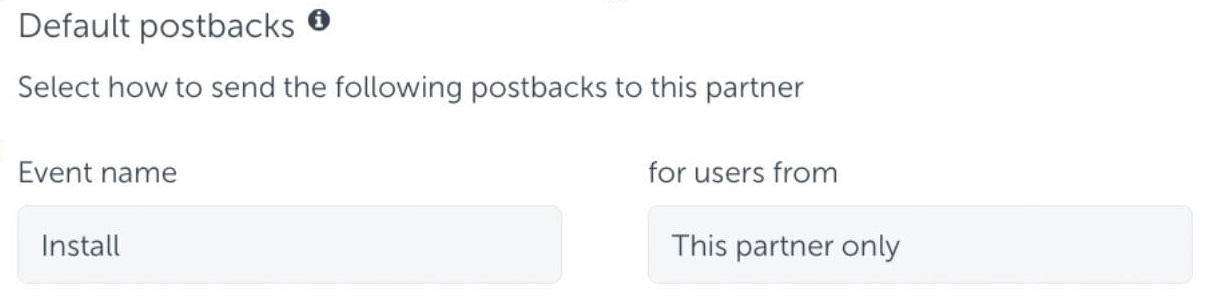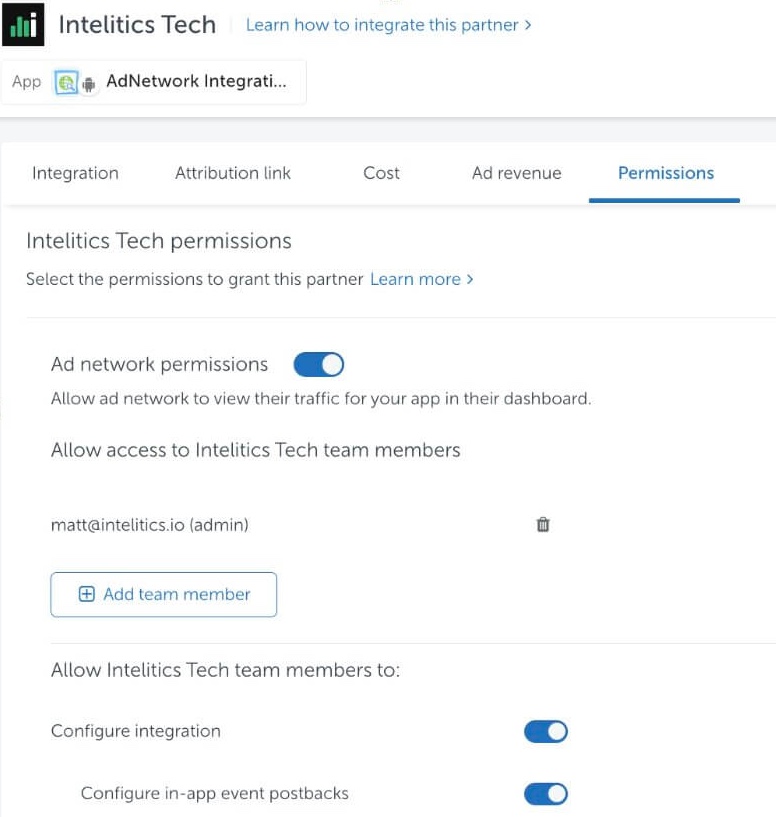
Navigate to > Tech > Manage Conversions
In order to utilize the "Conversion Management" tab you must have an Intelitics click ID.

Once you have your click ID enter it in "Click Id#" and hit "Get Conversions". You will be directed to two different tabs, "Details" and "Conversions".
- Details - This will show you all your campaign information, Partner, Destination URL, IP Address, User Agent, Originating Offer, Current Offer, etc.
- Conversions - Here you will see all conversions that are associated with your click ID, each page will contain a maximum of 100 events.
e.g., Click, Install, Registration, Deposit, Net Revenue, Wager etc.- If you would like to manually remove a conversion you can do so by hovering your mouse over the "Removed" column of the transaction row you would like removed and clicking the red "X". You will be asked to confirm you want this conversion removed, click remove.
- If you would like to manually add a conversion (Install, Registration, Deposit) please use the "+ Conversion" button to input your desired event type and select the date of the conversion event.

- To view any conversions that have been removed check "Show Removed Conversions", removed conversions will be marked as removed and greyed out.

- The "Updated At" column will show a timestamp of when the data was changed in your platform, Date column will show timestamp of transaction.
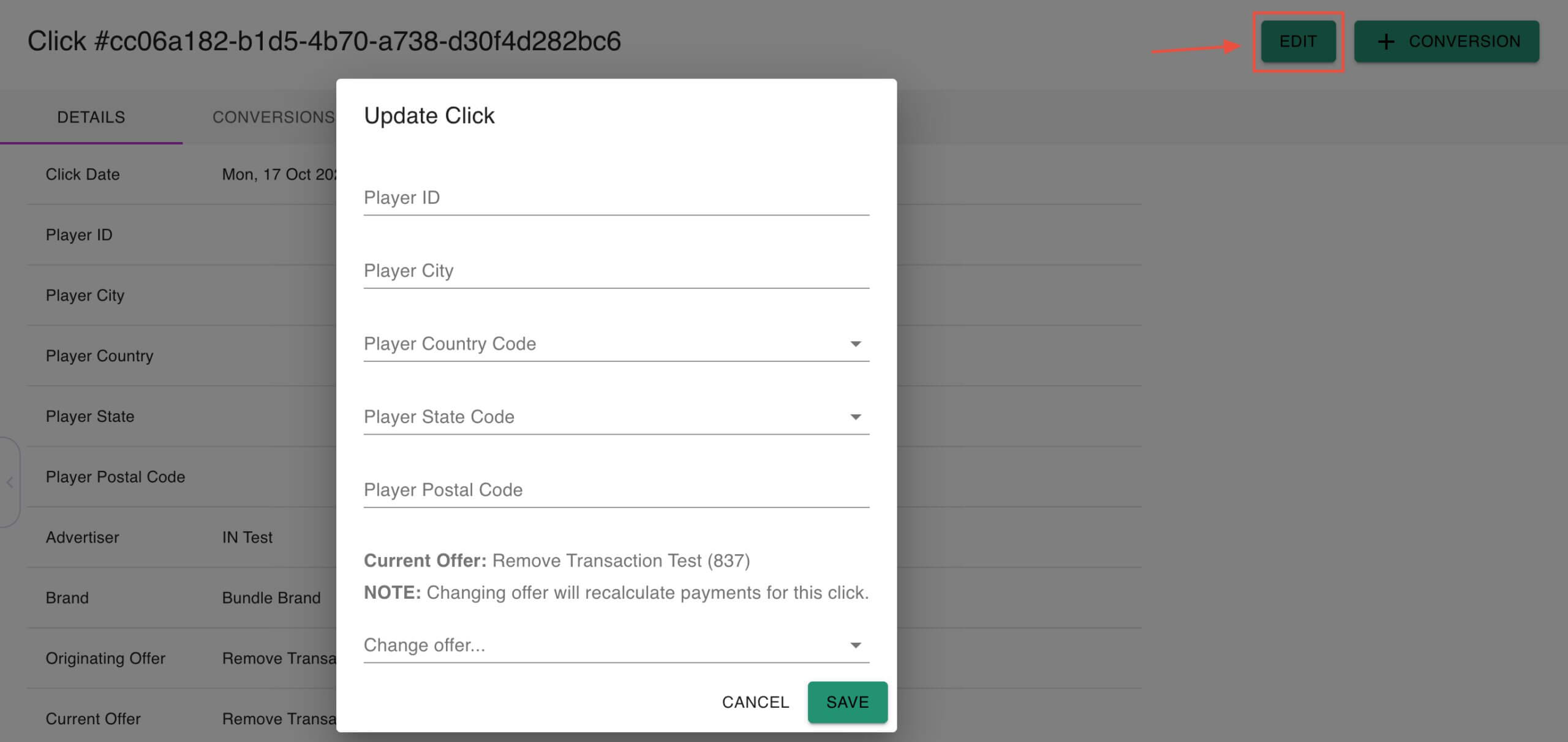
- If you would like to update a click and move it from its current Offer to another, add geo specific data or add a player ID select the "Edit" button. Once the desired update is made hit "save" to confirm the changes.
If you would like to move a click by using an API please contact your customer support contact for more information.