How to Reset a User Password

If you are having issues with your login and need to reset your password, you can reset your password by using the login screen.

Resetting Password by using login page

Navigate to the login page and select "Forgot password?"
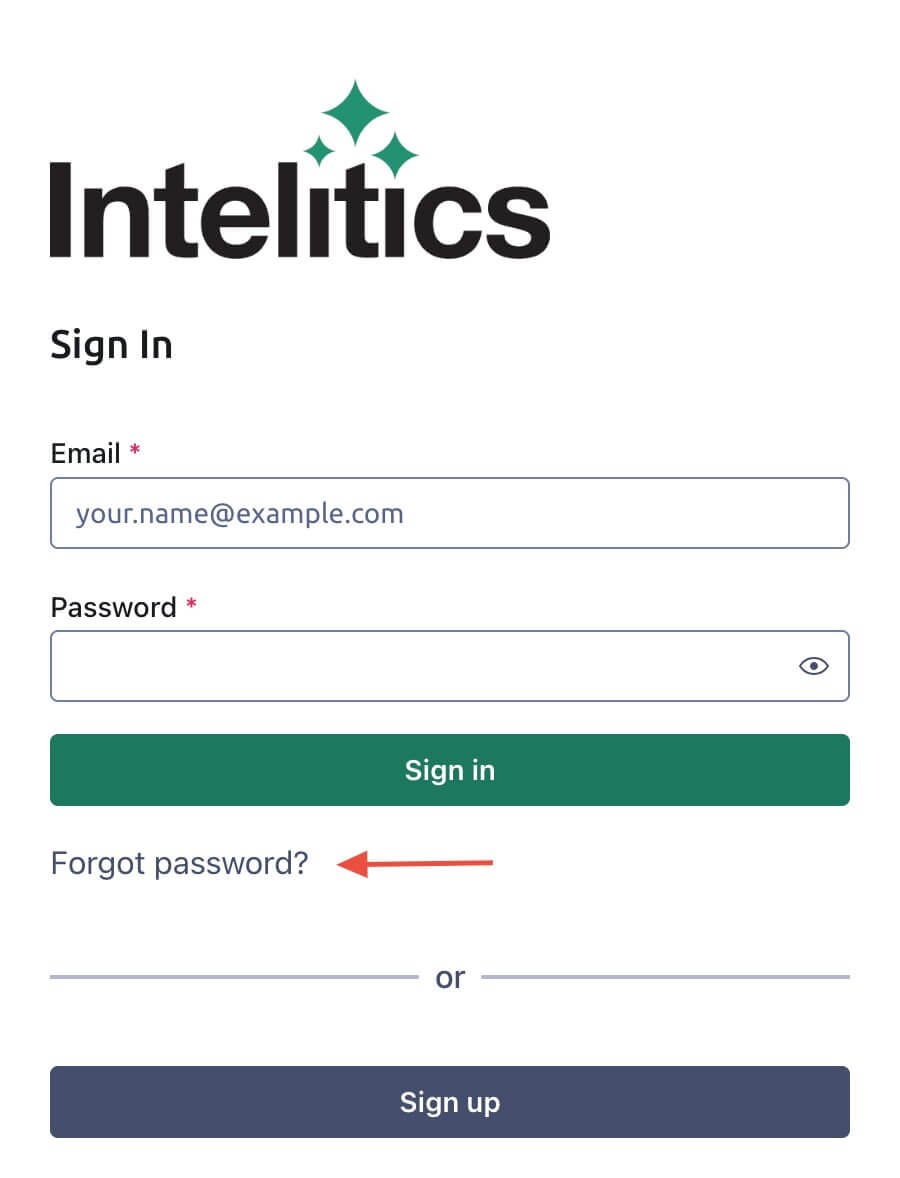
Forgot Password Link Guide

This will redirect you to provide your email, once you provide your email you will be emailed a link to reset your password. Once you receive the password reset email click on link provided in email and submit your new password.

Resetting Password an an Admin User

Please share the "forgot=password" URL with your partner in order to initiate their password reset workflow. Appending "/forgot-password" to your admin domain will send the user to the reset page.

Ex:

https://{yourdomainname}/forgot-password
Configure Postbacks

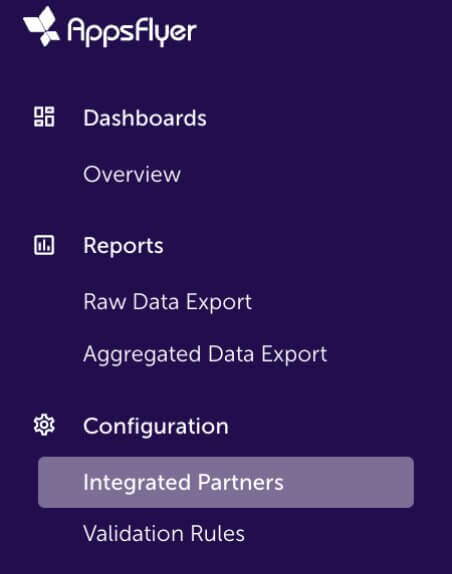
  • Open up the App, and navigate to "integrated partners"
Appsflyer Integrated Partner
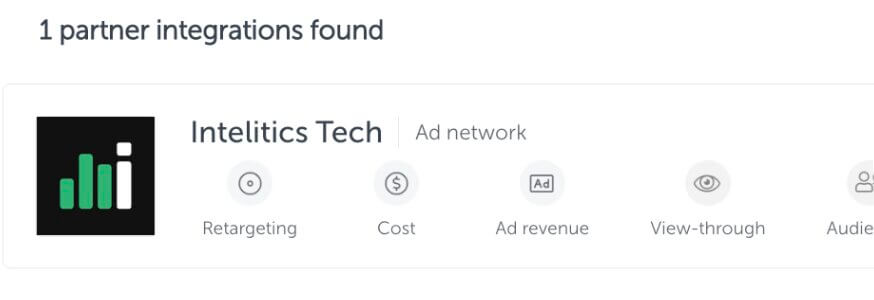
  • Select "Intelitics Tech"
Appsflyer Intelitics Tech
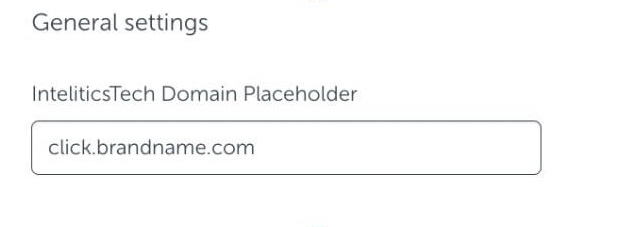
  • On the "Integration" tab, set the "InteliticsTech Domain Placeholder" for both "General Settings and "In-app Event Settings"
    • This is the domain set up for tracking links in Intelitics Instance, containing Second-Level Domain, Top-Level Domain, and Subdomain

      Eg: https://click.brandname.com/track/9bdadbfe-715f-4040-905d-364928eb6548?type=display
Appsflyer Domain Placeholder
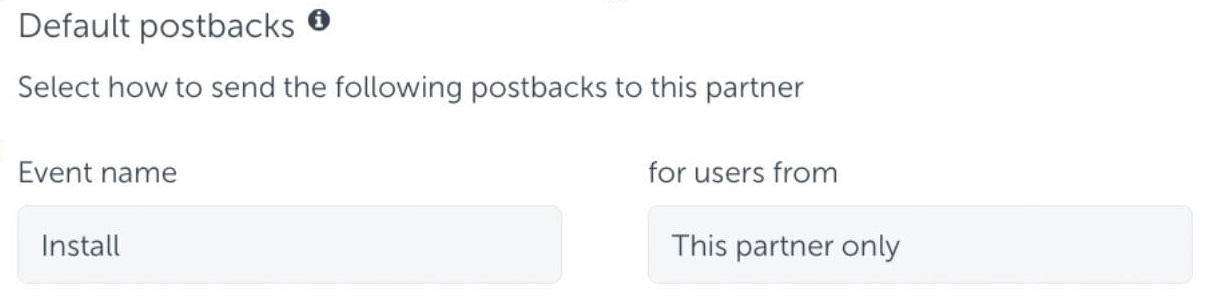
  • Set the name for Default Postbacks Event name to "Install"
Appsflyer Default Postback
  • Turn on "In-App events postback"
  • Add events for both registration and deposit
    • The name of "Appsflyer event" for registration and deposit could be different depending on your integration with appsflyer, these are the names of the events you are passing into Appsflyer
    • Names of "Mapped to partner event" must configured as "registration" and "deposit"
    • Deposit event should include "Values and Revenue" whenever possible

      Eg.
Appsflyer Inapp Events

Grant Intelitics Permissions

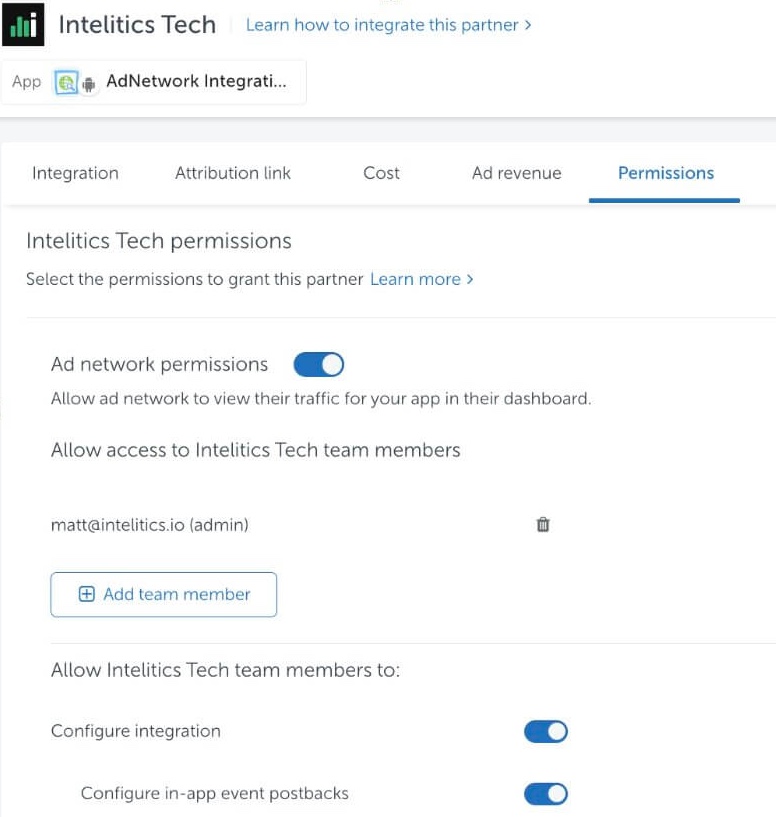
  • Navigate to "Permissions" tab
Appsflyer Grant Permissions
  • Set "Ad network permissions" to "On"
    • Must allow "configure integration" and "configure in-app event postbacks" as well.
  • Once complete, contact your support at Intelitics to verify the setup.