Monthly Payment Overview

The month-end close is the collection of financial accounting information, review, and reconciliation of records each month. This is a reporting requirement for some companies, and helps businesses keep accurate records throughout the year.

You may do the following in the monthly payments section,

  • Run and review payment calculations to determine user payments
  • Export reports with user payment details
  • Record payment adjustments
  • Record comments on monthly payment items
  • Mark payments as either "Paid" or "Rolled Over"
  • View historical months payments
  • View any Referral Costs for a User

To view a month please click on the date picker towards the top left corner of the monthly payments page and select your desired month. (Please note if a month is greyed out the month does not contain any payable amounts.)
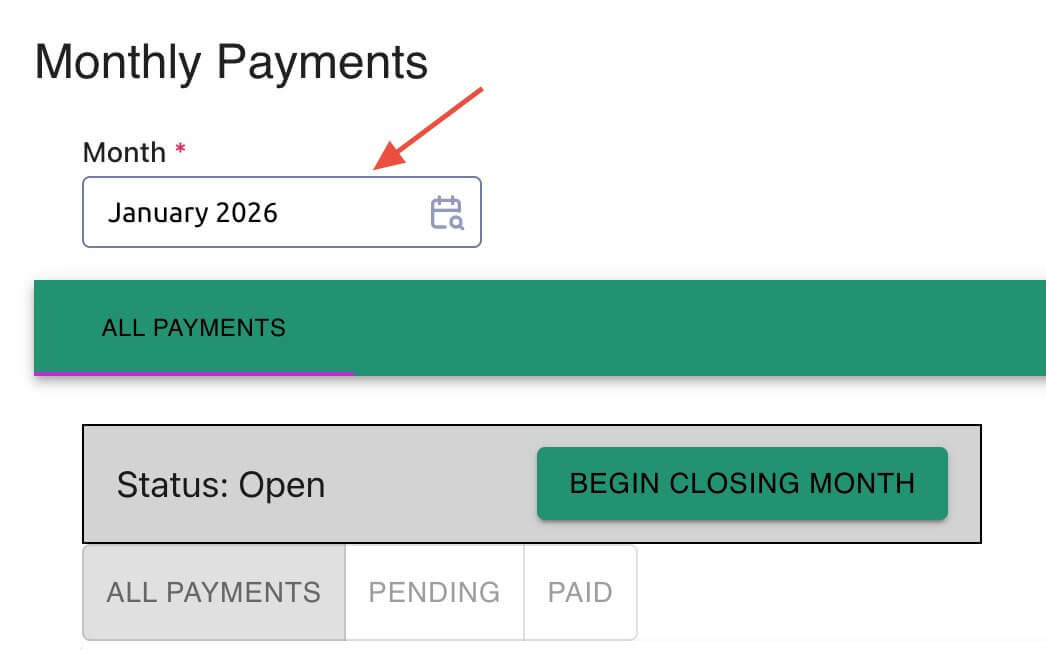
Monthly Payments

Configure Postbacks

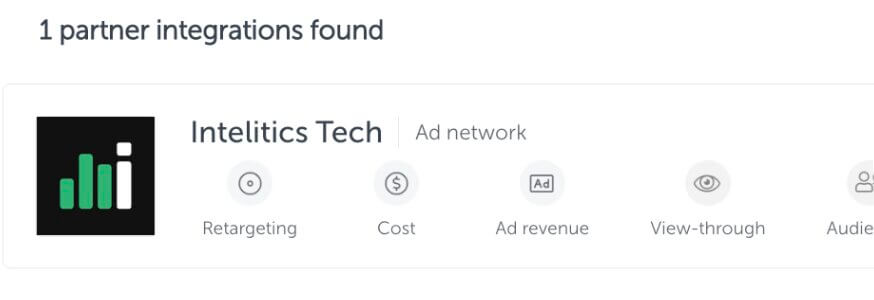
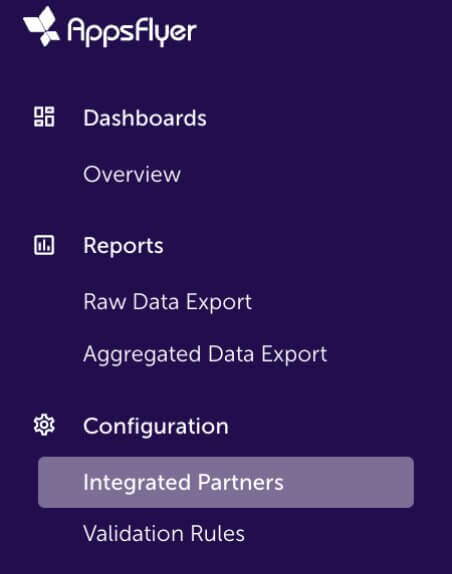
  • Open up the App, and navigate to "integrated partners"
Appsflyer Integrated Partner
  • Select "Intelitics Tech"
Appsflyer Intelitics Tech
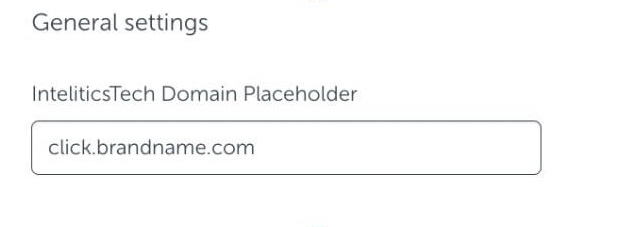
  • On the "Integration" tab, set the "InteliticsTech Domain Placeholder" for both "General Settings and "In-app Event Settings"
    • This is the domain set up for tracking links in Intelitics Instance, containing Second-Level Domain, Top-Level Domain, and Subdomain

      Eg: https://click.brandname.com/track/9bdadbfe-715f-4040-905d-364928eb6548?type=display
Appsflyer Domain Placeholder
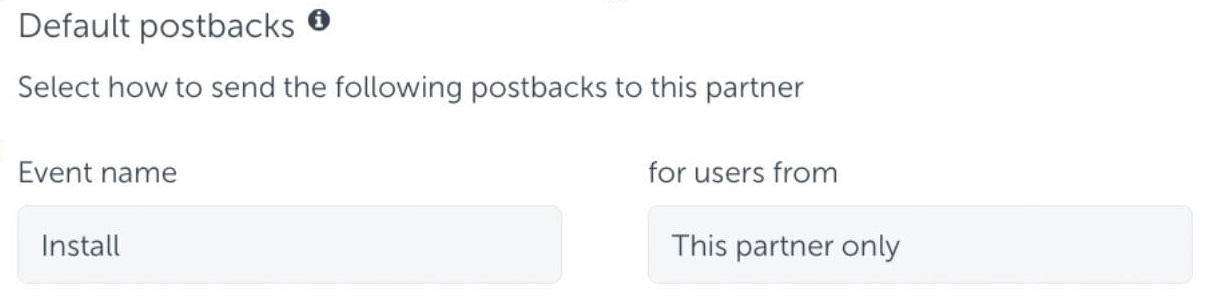
  • Set the name for Default Postbacks Event name to "Install"
Appsflyer Default Postback
  • Turn on "In-App events postback"
  • Add events for both registration and deposit
    • The name of "Appsflyer event" for registration and deposit could be different depending on your integration with appsflyer, these are the names of the events you are passing into Appsflyer
    • Names of "Mapped to partner event" must configured as "registration" and "deposit"
    • Deposit event should include "Values and Revenue" whenever possible

      Eg.
Appsflyer Inapp Events

Grant Intelitics Permissions

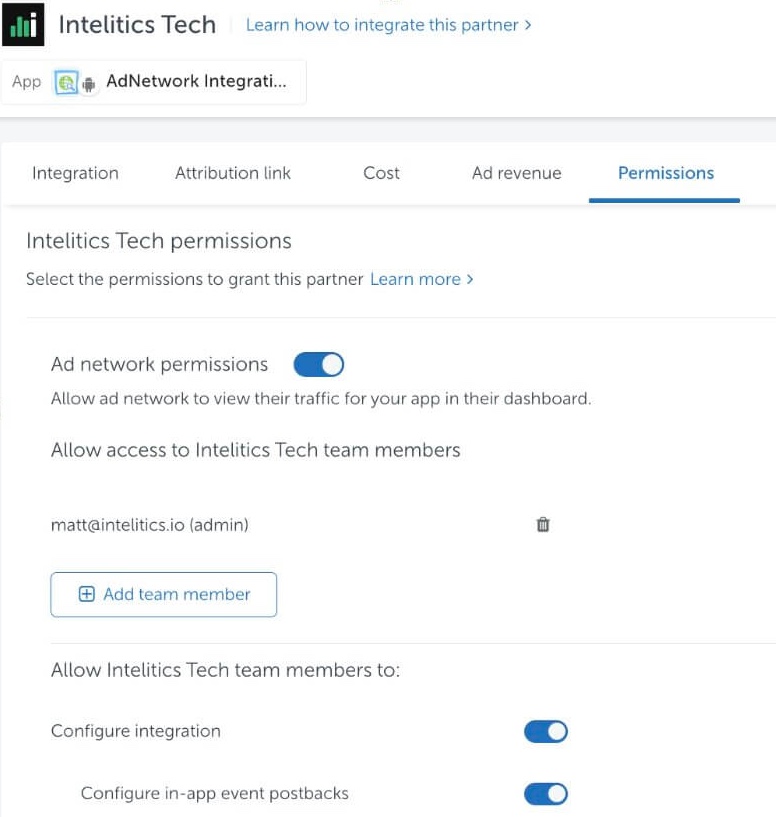
  • Navigate to "Permissions" tab
Appsflyer Grant Permissions
  • Set "Ad network permissions" to "On"
    • Must allow "configure integration" and "configure in-app event postbacks" as well.
  • Once complete, contact your support at Intelitics to verify the setup.