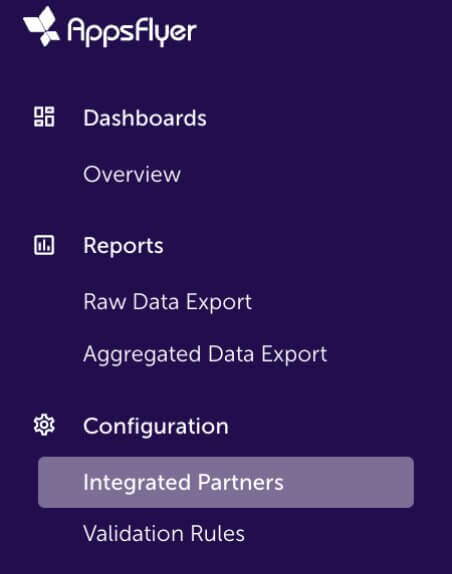
If you would like to make any changes to the way the system calculates your monthly payments you can do so by navigating to:
Accounting > Payments > Monthly Settings
Changing Monthly Settings for your current month will carry over to all months moving forward.
Changing monthly settings for a previous month would not update the subsequent months. A previous month is independent of itself and any months moving forward would not have their payments settings changed.
Revenue Share Ringfencing Options
Ringfence agreement commission type - If checked, a partners negative monthly RS earnings for a subtotal of a Hybrid and Straight Revshare deals are treated independently and zeroed out for the monthly payments module.
Example 1
This is an example of multiple RS deals with Ringfence agreement commission type checked:
- RS Earnings
- Brand 1 Offer 1 (Revenue Share Deal): $-50
- Brand 1 Offer 2 (Revenue Share Deal): $-100
- Brand 1 Offer 3 (Hybrid Deal): $100
Ringfenced RS Payable: $100
Example 2
This is an example of multiple RS deals with Ringfence agreement commission type not checked:
- RS Earnings
- Brand 1 Offer 1 (Revenue Share Deal): $-50
- Brand 1 Offer 2 (Revenue Share Deal): $-50
- Brand 1 Offer 3 (Hybrid Deal): $100
Ringfenced RS Payable: $0
Brand Bundling - If brands are bundled together total revshare amounts for each brand are added up together then ringfenced. Any brand that is not included in the bundle will be treated independently and will be ringfenced before added to revshare totals for other brands.
You can bundle as many brands together as you please
Ex: (Brand 1+Brand 2+Brand 3+Brand 4) + (Brand 5) +(Brand 6)
You cannot set multiple brand bundles
Ex: (Brand 1+Brand 2+Brand 3+Brand 4) + (Brand 5 +Brand 6)
Example 1
This is an example of multiple RS deals where two brands are bundled together (Brand 1+Brand 2)
- Brand 1 Offer 1 (Revenue Share Deal): $-50
- Brand 2 Offer 1 (Revenue Share Deal): $100
Ringfenced RS Payable: $50
Example 2
This is an example of multiple RS deals where two brands are not bundled together (Brand 1) + (Brand 2)
- RS Earnings
- Brand 1 Offer 1 (Revenue Share Deal): $-50
- Brand 2 Offer 1 (Revenue Share Deal): $100
Ringfenced RS Payable: $100