Creating an Account Pool

Navigate to Campaigns > Pools, click on "+ Account Pool" the following fields will appear

  • Advertiser - Find the name of the Advertiser you want to create the pool for.
  • Account Pool Name - Where you want to name the account pool
    (i.e YourBrand CPA Account Pool)
  • Account Pool Description - *Optional- Brief description of account pool purpose. It is beneficial to mention what platform Advertiser is using
    (i.e YourBrand CPA Pool Structure (Advertiser Platform))
  • Variable X Name - What is the name of the variable. This value will be used as a slug, no capital letters, spaces, or special characters. You may set up variables however you like, it is recommended to use the same variable as the Advertiser does if you are only setting up one variable.
    (i.e Advertiser uses “pid” variable. Name variable X ‘pid’)
  • Variable X Description - *Optional- quick description of variable name
    (i.e Publisher ID “pid” (Marketing Source))

There is no limit on the amount of variables you can add per Account Pool.

Click here to learn how to create an Account within an Account Pool.
Configure Postbacks

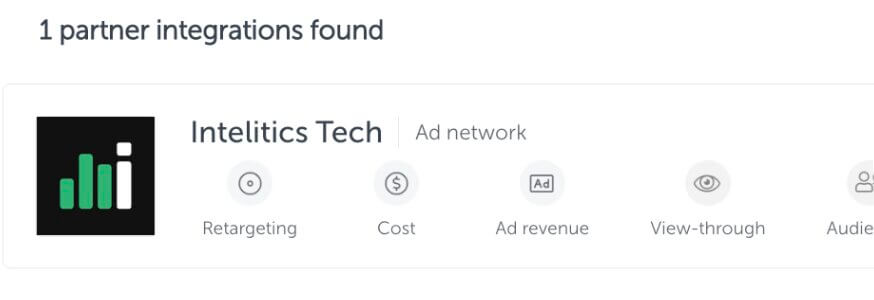
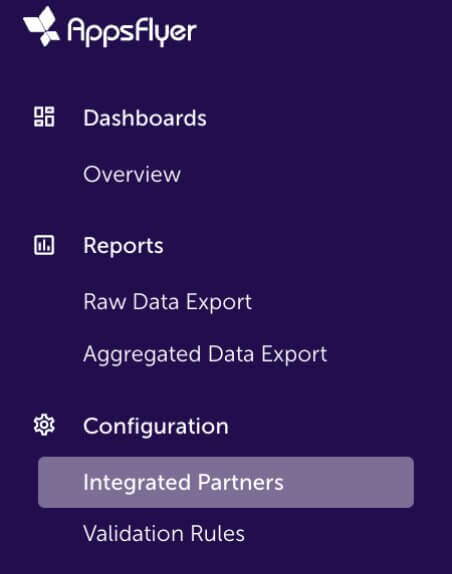
  • Open up the App, and navigate to "integrated partners"
Appsflyer Integrated Partner
  • Select "Intelitics Tech"
Appsflyer Intelitics Tech
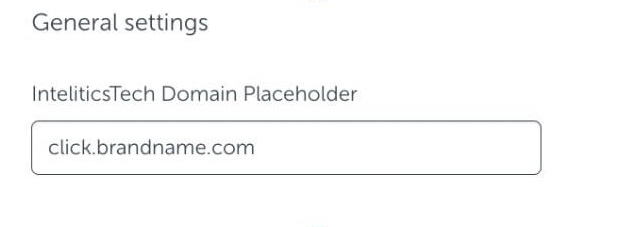
  • On the "Integration" tab, set the "InteliticsTech Domain Placeholder" for both "General Settings and "In-app Event Settings"
    • This is the domain set up for tracking links in Intelitics Instance, containing Second-Level Domain, Top-Level Domain, and Subdomain

      Eg: https://click.brandname.com/track/9bdadbfe-715f-4040-905d-364928eb6548?type=display
Appsflyer Domain Placeholder
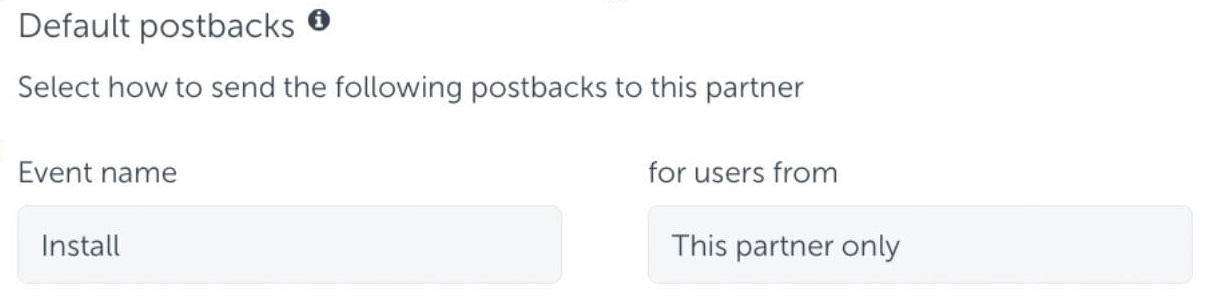
  • Set the name for Default Postbacks Event name to "Install"
Appsflyer Default Postback
  • Turn on "In-App events postback"
  • Add events for both registration and deposit
    • The name of "Appsflyer event" for registration and deposit could be different depending on your integration with appsflyer, these are the names of the events you are passing into Appsflyer
    • Names of "Mapped to partner event" must configured as "registration" and "deposit"
    • Deposit event should include "Values and Revenue" whenever possible

      Eg.
Appsflyer Inapp Events

Grant Intelitics Permissions

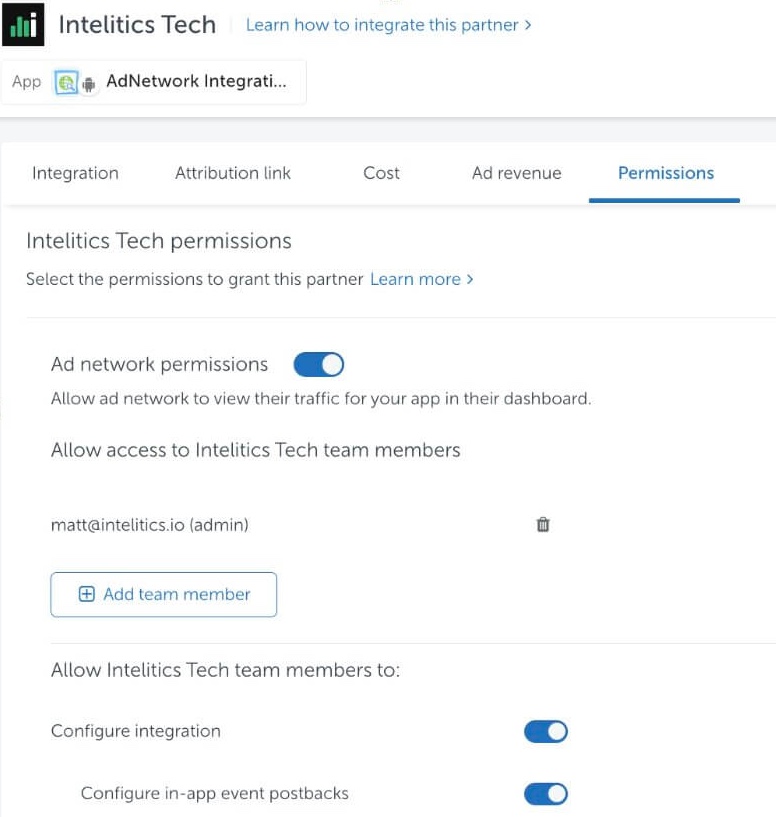
  • Navigate to "Permissions" tab
Appsflyer Grant Permissions
  • Set "Ad network permissions" to "On"
    • Must allow "configure integration" and "configure in-app event postbacks" as well.
  • Once complete, contact your support at Intelitics to verify the setup.