Utilize Account Pools and Variables in Offers

In order to utilize the Account Pool variables in your destination link inputs, the following conditions must be met.

  • An Account Pool must exist for the selected Advertiser
  • An Account for the desired partner must exist within the pool
  • In an Offer’s Settings, "Advertiser Account Required" must be turned on, and an Account Pool selected. This allows Subagreements and Creatives to utilize Account Pools.
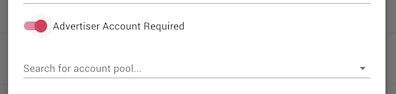
Advertiser Account Toggle
  • In Offer > Agreements, a Partner’s Subagreement must have the Account selected
Subagreement Account Pool Example
  • In an Offer’s “Destination Link” (either on Creative or Offer level) the variables should be utilized somewhere in the URL

e.g., If the variable name in the Account Pool is "variable_name" you may use this slug surrounded by "%" to dynamically pass the variable
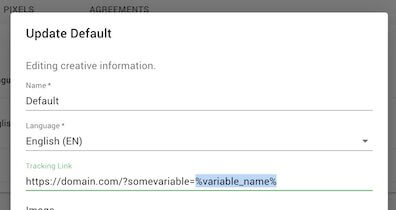
Account Pool Variable Example

Configure Postbacks

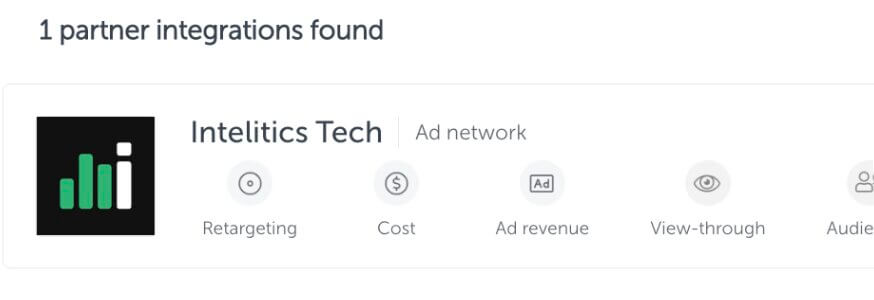
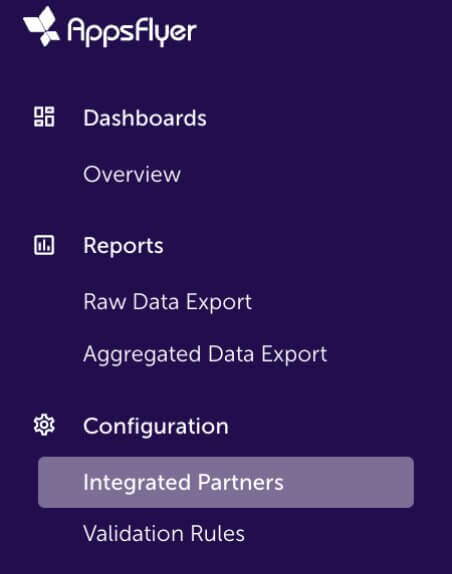
  • Open up the App, and navigate to "integrated partners"
Appsflyer Integrated Partner
  • Select "Intelitics Tech"
Appsflyer Intelitics Tech
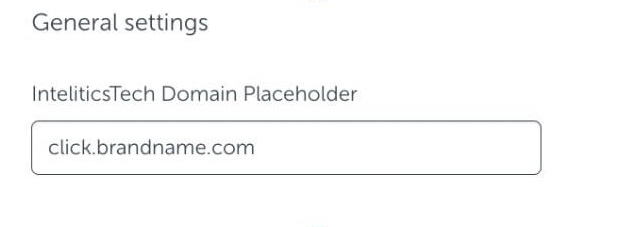
  • On the "Integration" tab, set the "InteliticsTech Domain Placeholder" for both "General Settings and "In-app Event Settings"
    • This is the domain set up for tracking links in Intelitics Instance, containing Second-Level Domain, Top-Level Domain, and Subdomain

      Eg: https://click.brandname.com/track/9bdadbfe-715f-4040-905d-364928eb6548?type=display
Appsflyer Domain Placeholder
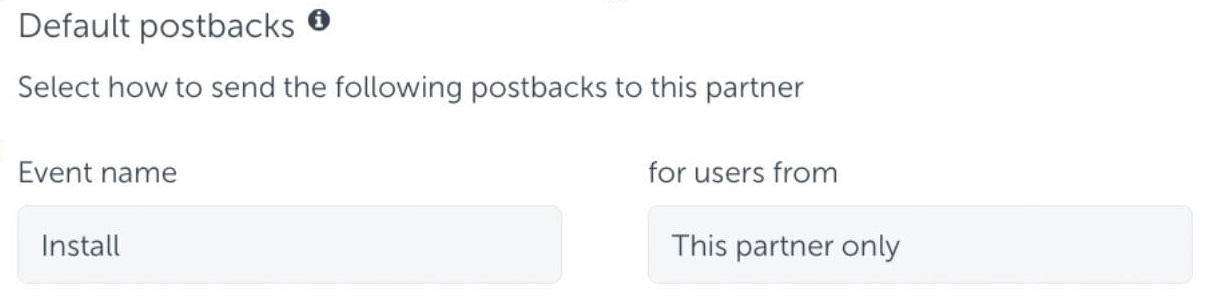
  • Set the name for Default Postbacks Event name to "Install"
Appsflyer Default Postback
  • Turn on "In-App events postback"
  • Add events for both registration and deposit
    • The name of "Appsflyer event" for registration and deposit could be different depending on your integration with appsflyer, these are the names of the events you are passing into Appsflyer
    • Names of "Mapped to partner event" must configured as "registration" and "deposit"
    • Deposit event should include "Values and Revenue" whenever possible

      Eg.
Appsflyer Inapp Events

Grant Intelitics Permissions

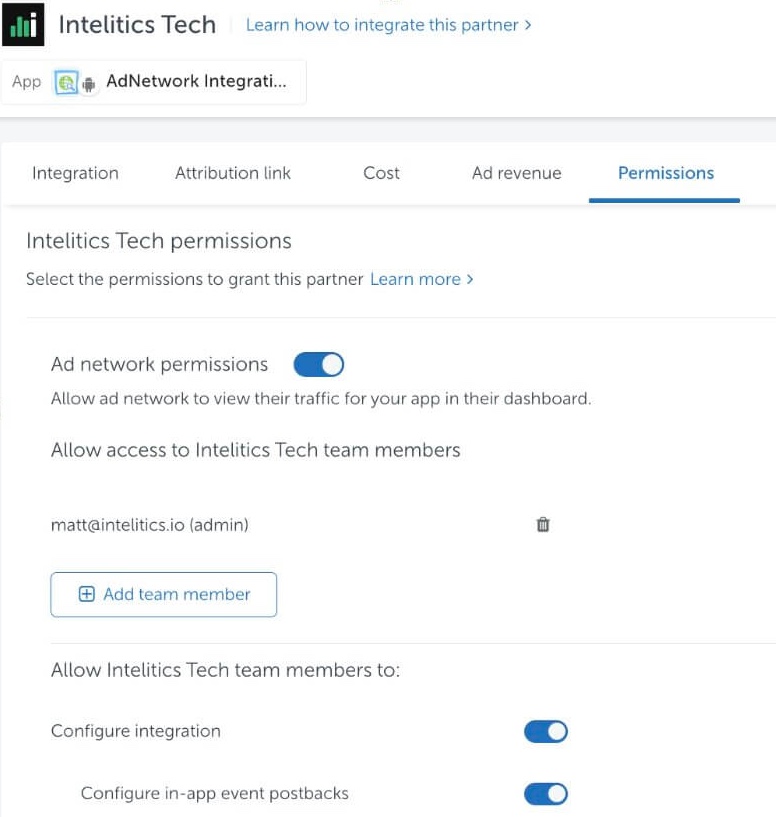
  • Navigate to "Permissions" tab
Appsflyer Grant Permissions
  • Set "Ad network permissions" to "On"
    • Must allow "configure integration" and "configure in-app event postbacks" as well.
  • Once complete, contact your support at Intelitics to verify the setup.